Glider AI Assessment: Proctoring, Coding & Setup Guide (2026)
Taking a Glider AI assessment? Here is what its 50+ proctoring checks actually record, how WebIDE and Linux tasks work, system check fixes, and how to pass.
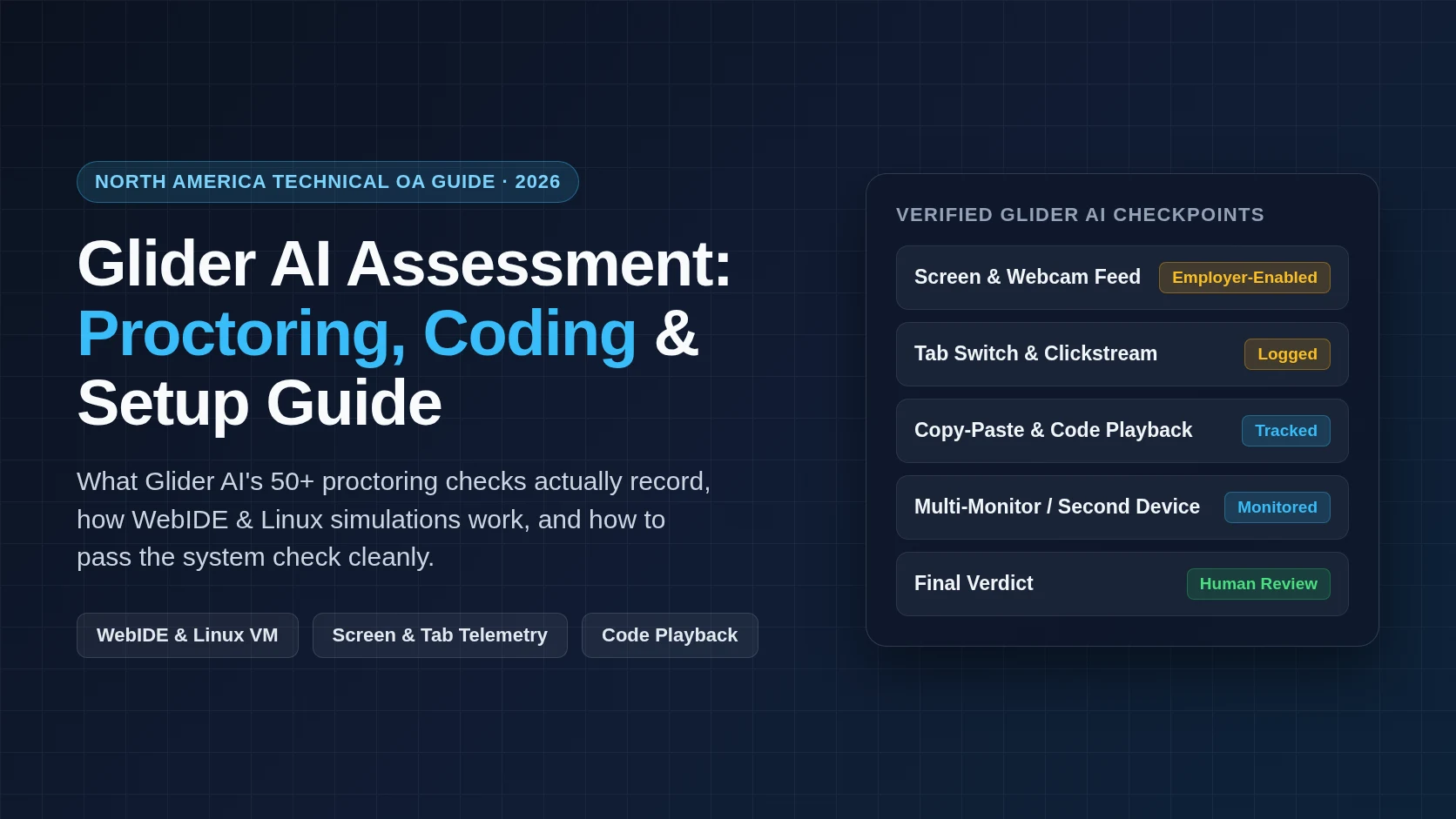
Short answers. Glider AI (now part of Findem) is an enterprise skills-assessment and AI-proctoring platform used heavily by North American banks, Fortune 500 engineering teams, and IT staffing firms. When an employer enables proctoring, Glider runs up to 50+ integrity checks—covering screen and webcam recording, tab switches, copy-paste alerts, multi-device checks, and code playback—and delivers a timestamped audit trail to a human reviewer. Every row below was verified against Glider AI's official AI Proctoring, Coding Simulations, Technical Skill Test, and ID Verify documentation on 27 November 2026.
| Question | Short answer |
|---|---|
| Does Glider AI record your screen and webcam? | Yes, when enabled by the employer. Pre-test setup requests camera, microphone, and browser screen-share permissions, and logs webcam and screen feeds during the test. |
| Does Glider AI detect tab switching and copy-paste? | Yes. Official docs list tab switch & clickstream tracking, internet browsing detection, external app monitoring, copy-paste alerts, and configurable assessment exit limits. |
| Does Glider AI check for multiple monitors or second devices? | Yes. Glider includes multi-device proctoring, face/gaze tracking, multiple-face detection, and post-test audio checks for multiple voices or phone usage. |
| What coding environment does Glider AI use? | Three formats across 250+ languages and technologies: standard coding challenges, multi-file WebIDE Simulations (front-end/back-end/full-stack), and a browser-based Linux Virtual Desktop. |
| Does a proctoring flag auto-reject you? | No. Flags feed into a cheating probability score and timestamped audit trail (with video clips and code playback) reviewed by the hiring team. |
If an invite from hire.glider.ai just landed in your inbox—often sent by an enterprise engineering team, a major bank, or a North American staffing partner recruiting for a contract-to-hire role—it looks different from a standard HackerRank link. Before you even see Question 1, Glider may ask for a live selfie, a photo ID scan, an internet speed test, and full screen-sharing permissions.
Knowing which checks are actually running, how Glider's coding simulations are graded, and how to clear the system check without burning test minutes puts you in control of the session.
How a Glider AI Assessment Works (Format & Question Types)
Glider AI—which was acquired by Findem to combine talent sourcing with skills verification—is built around job-specific simulations rather than pure LeetCode trivia. Per Glider's Technical Skill Test and Coding Simulations pages, employers pull from 250+ languages and technologies and assemble tests from four main building blocks:
- Standard auto-graded coding problems. Timed algorithm, SQL, or scripting questions graded against visible and hidden test cases, similar to HackerRank or Codility.
- WebIDE project simulations. Multi-file, real-world repositories running inside your browser—such as debugging a React component, implementing paginated REST endpoints in Django with MySQL/MongoDB, building a FIFO cache, running a Spark data pipeline, or writing QA functional tests.
- Linux Virtual Desktop tasks. For DevOps, cloud, SRE, and backend roles, Glider can spin up a full Linux desktop environment directly in the browser so you configure services, debug logs, or run shell commands on a live machine.
- Role-based MCQs and short video/written prompts. Many North American enterprise and staffing-agency screens pair 1–2 hands-on coding tasks with 10–20 timed multiple-choice questions covering framework behavior, system design basics, or domain knowledge.
Most Glider assessments run 45 to 90 minutes in a single sitting. Because hidden test cases and code playback are scored automatically after submission, submitting partial working code that passes core test cases is always better than leaving a blank editor while hunting for a perfect optimization.
What Glider AI Proctoring Actually Monitors (50+ Checks)
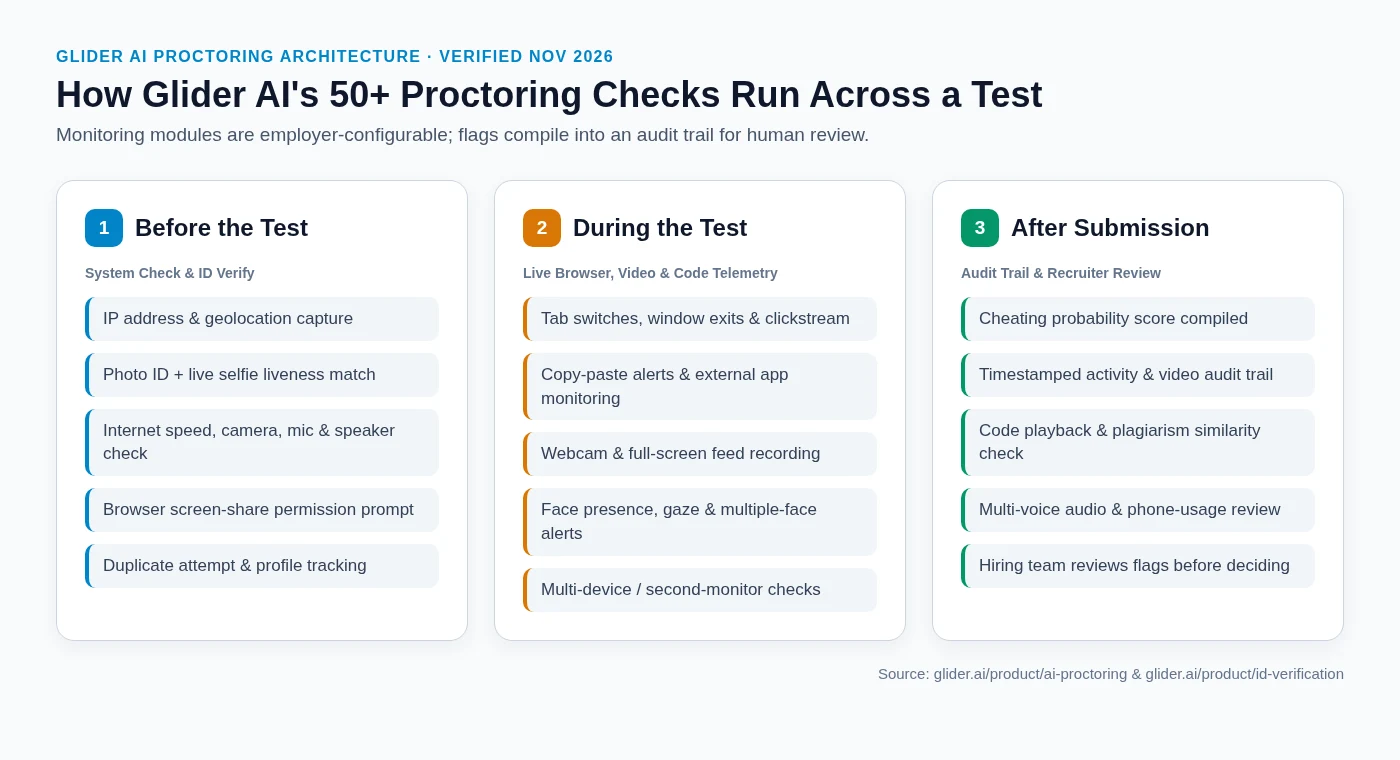
Not every Glider test turns on every switch—proctoring modules are configured per assessment by the hiring team. However, enterprise employers in banking, healthcare, and staffing routinely enable the full stack. Per Glider AI's official AI Proctoring breakdown and ID Verify documentation, the platform splits its 50+ checks into three phases:
Before the Assessment
- Identity & continuity checks: IP address and geolocation capture, a live profile selfie, and a government Photo ID check with liveness detection. If you advance to later interviews on Glider, its Candidate Continuity Check compares your live face against the earlier session.
- Hardware & permission verification: Internet speed test, webcam check, microphone and speaker check, and browser screen-sharing permission.
- Duplicate attempt tracking: Flags candidates attempting to open the same assessment twice under different emails or sessions.
During the Assessment
- Browser & window telemetry: Tracks tab switches, window focus exits, clickstream patterns, internet browsing, and external app usage. Employers can set a strict cap on assessment exits or require the Glider Safe Browser (GSB)—a lockdown browser for Windows and macOS that restricts local apps and secondary sites.
- Clipboard & screen alerts: Logs copy-paste events and alerts the system if screen sharing is paused or revoked mid-test.
- Webcam, audio & multi-device tracking: Records continuous webcam and screen feeds, flags when your face leaves the frame or looks away repeatedly, detects multiple faces or brightness anomalies, checks for multiple monitors/devices, and runs lip-sync and voice presence analysis.
After Submission
- Code playback & plagiarism: Reviewers can replay your coding session step by step to see how code was written, alongside automated code plagiarism matching.
- Cheating probability score & audit trail: All telemetry aggregates into a single probability score paired with timestamped clips and event logs. A human recruiter or hiring manager reviews those clips before deciding next steps—an isolated glance away or a brief browser notification does not automatically disqualify you on its own.
Glider AI vs. TestDome, Vervoe, iMocha, and Adaface
If you are actively interviewing across North American tech and enterprise companies, you will often hit several assessment platforms in the same month. Their monitoring architectures are not identical:
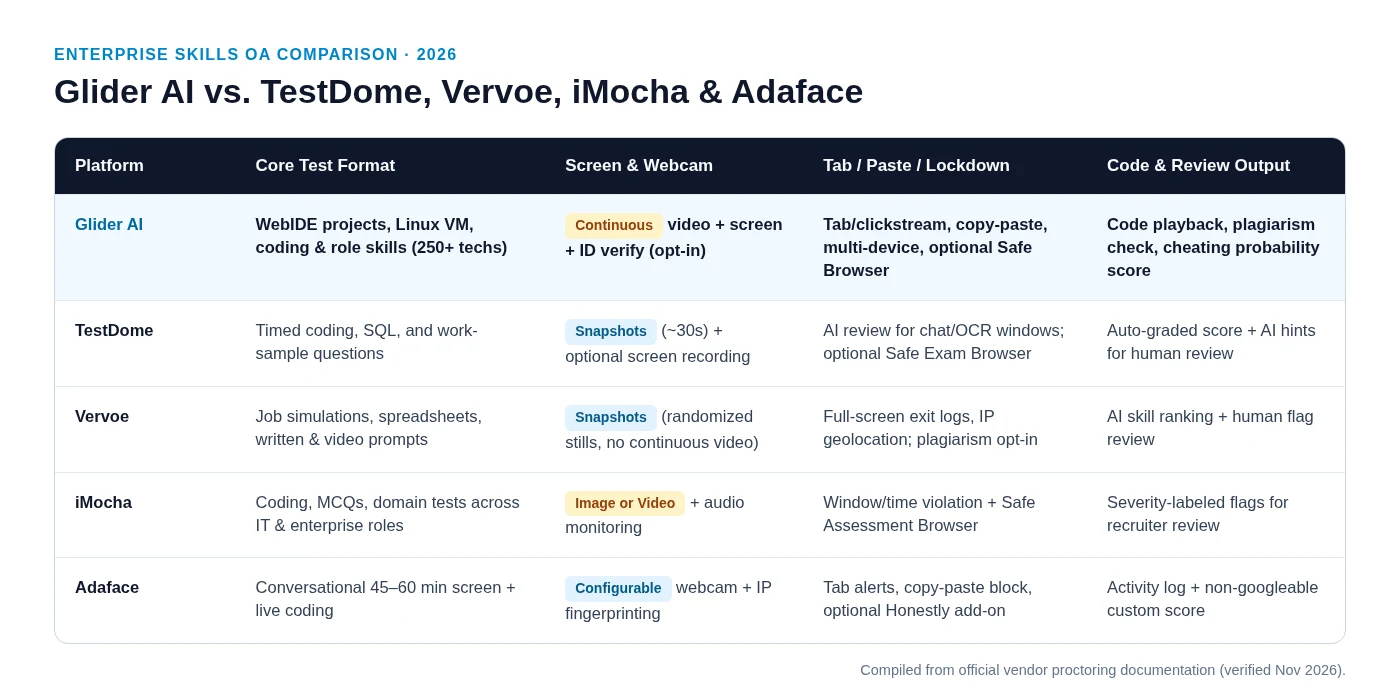
Compared to snapshot-based platforms like TestDome or Vervoe, Glider AI leans closer to iMocha and Adaface on the enterprise security side: continuous screen and webcam feeds, ID verification, and optional Safe Browser lockdown are standard options when a client demands strict verification.
Pre-Test System Check: Requirements and Quick Fixes
Nothing burns assessment time faster than fighting a failed camera or screen-share check while your invite window is about to expire. Per Glider's Freshdesk support portal, verify this checklist 15 minutes before clicking Start Test:
- Use a supported browser: Google Chrome (v77+) or Mozilla Firefox (v69+) on Windows 8+, macOS, or Ubuntu Linux. Avoid Safari, Brave, or heavily locked-down corporate browser profiles.
- Unplug external monitors: Multi-device proctoring and full-screen sharing frequently throw warnings when two displays are active. Switch to a single screen before launching the system check.
- Fix macOS screen-recording permissions early: On macOS, Chrome or Firefox needs explicit Screen & System Audio Recording permission under System Settings → Privacy & Security. Granting it requires restarting the browser—do this before opening the graded link.
- Pause VPNs, ad blockers, and corporate proxies: Aggressive DNS filters and company VPNs often break WebRTC camera/screen streams to
hire.glider.ai. Use a personal laptop on a stable home connection whenever possible. - Close background apps if Glider Safe Browser is required: If your invite mentions GSB, save your work and quit Slack, Discord, screen-capture utilities, and remote-desktop tools before launching it so the pre-flight check passes on the first try.
- Take the sample question if offered: Most Glider invites include a short unscored practice prompt to test the WebIDE, keyboard shortcuts, and compiler output before the real clock starts.
How to Prepare for Glider AI—and the Live Technical Rounds Next
Because Glider mixes practical project tasks with strict timing, preparation pays off fastest when it matches the format:
- Drill your stack's actual project patterns, not just isolated algorithms. If the role is React, Django, SQL, or Spark, practice building and debugging a small multi-file task in a clean editor without leaning on local IDE plugins or autocomplete extensions you won't have inside Glider's WebIDE.
- Write incremental, testable code. Glider's code playback shows your progression from skeleton to passing tests. Outline the structure, run sample inputs early, handle edge cases explicitly, and leave yourself 5 minutes at the end to verify hidden-case constraints (null inputs, empty arrays, large payloads, and time limits).
- Prepare for the live technical and hiring-manager rounds immediately after. Passing a Glider AI assessment is typically the gate into a live 45–60 minute technical interview on Zoom, Google Meet, or Microsoft Teams—where engineers often pull up your Glider submission and ask you to explain trade-offs or extend your solution live.
That is where pairing your prep with AceRound covers the whole loop end to end:
- Before the live round: Use AceRound Question Prediction on your resume and the job description to map out likely technical and behavioral follow-ups, then rehearse explaining your architecture out loud in AceRound Mock Interview.
- During live interviews and timed OAs: AceRound's desktop Interview Copilot listens to live technical and behavioral conversations in real time and surfaces structured talking points and follow-up cues in seconds. Across your broader job search, the same desktop app also includes OA Copilot — online assessments on HackerRank, CodeSignal, Codility, and CoderPad (see how OA Copilot works), drawing from the exact same minute pool (unlimited during active passes). And if you are still building your interview pipeline across Greenhouse, Lever, Ashby, SmartRecruiters, or Workable, AceRound Auto Apply automates ATS form-filling directly inside your Chrome browser and pauses before submit for your review.
Every new AceRound account starts with 30 free live minutes, 1 mock interview, and 2 question predictions with no credit card required. When you need full coverage for an upcoming hiring loop, one-time passes with no auto-renewal start at $9.90 for a 60-minute Starter Pack (never expires), $24.90 for a 7-day Weekly Pass, $39.90 for a 30-day Monthly Pass, or $69.90 for a 90-day Season Pass.
If your interview process also includes other screening platforms, see our breakdowns of CodeSignal's proctoring rules, HackerRank's cheating detection, TestGorilla's monitoring tiers, and Hireflix one-way video interviews.
FAQ
Does Glider AI record your screen and webcam?
Yes, when the hiring company enables proctoring for that assessment. Glider AI's official AI Proctoring documentation lists webcam and screen feed recording, microphone checks, and browser screen-share permissions as configurable checks. Your pre-test consent screen explicitly states which streams are active before the timer starts.
Does Glider AI detect tab switching, copy-paste, and multiple monitors?
Yes. Glider AI logs tab switches, window focus exits, clickstream activity, copy-paste alerts, and external app monitoring, and also includes multi-device and second-monitor proctoring checks. Employers can set a cap on allowed assessment exits or require the Glider Safe Browser (GSB) for locked-down sessions.
Does Glider AI track code playback and plagiarism?
Yes. For technical and coding assessments, Glider AI records code playback so reviewers can replay how your solution evolved over time, and runs post-submission code plagiarism checks alongside a cheating probability score.
Does a Glider AI proctoring flag automatically reject your application?
No. Glider AI compiles flags into a cheating probability score and a timestamped audit trail with video clips and activity logs so human recruiters or hiring managers can inspect what happened before making a decision.
What kind of questions appear on a Glider AI coding assessment?
Depending on the role, Glider AI combines auto-graded coding problems across 250+ languages and technologies, multi-file WebIDE project simulations (front-end, back-end, full-stack, data science, or QA), full Linux Virtual Desktop tasks, multiple-choice technical questions, and short recorded video responses.
What browsers and hardware do I need for the Glider AI system check?
Glider's support documentation recommends Google Chrome (version 77 or higher) or Mozilla Firefox (version 69 or higher) on Windows 8+, macOS, or Ubuntu Linux, with a working webcam, microphone, speakers, and stable broadband. Some assessments also require installing the Glider Chrome extension or the Glider Safe Browser.
Why did my Glider AI system check fail, and how do I fix it?
Most pre-test failures come from blocked browser permissions for camera, mic, or screen sharing, corporate VPN or firewall rules blocking hire.glider.ai media streams, or a second monitor still connected. Disconnect external displays, disable VPNs or ad blockers, switch to a clean Chrome profile, and re-run the system check before launching the graded test.
Author · Alex Chen. Career consultant and former tech recruiter. Spent 5 years on the hiring side before switching to help candidates instead. Writes about real interview dynamics, not textbook advice.
Online assessment coming up? Get the answer right next to each question
OA Copilot — online assessments on HackerRank, CodeSignal, Codility and aptitude tests. Hover over a question and the answer appears in a private overlay only you can see: no tab switching, nothing on the shared screen. New users get 30 minutes free, no credit card.
Related Articles
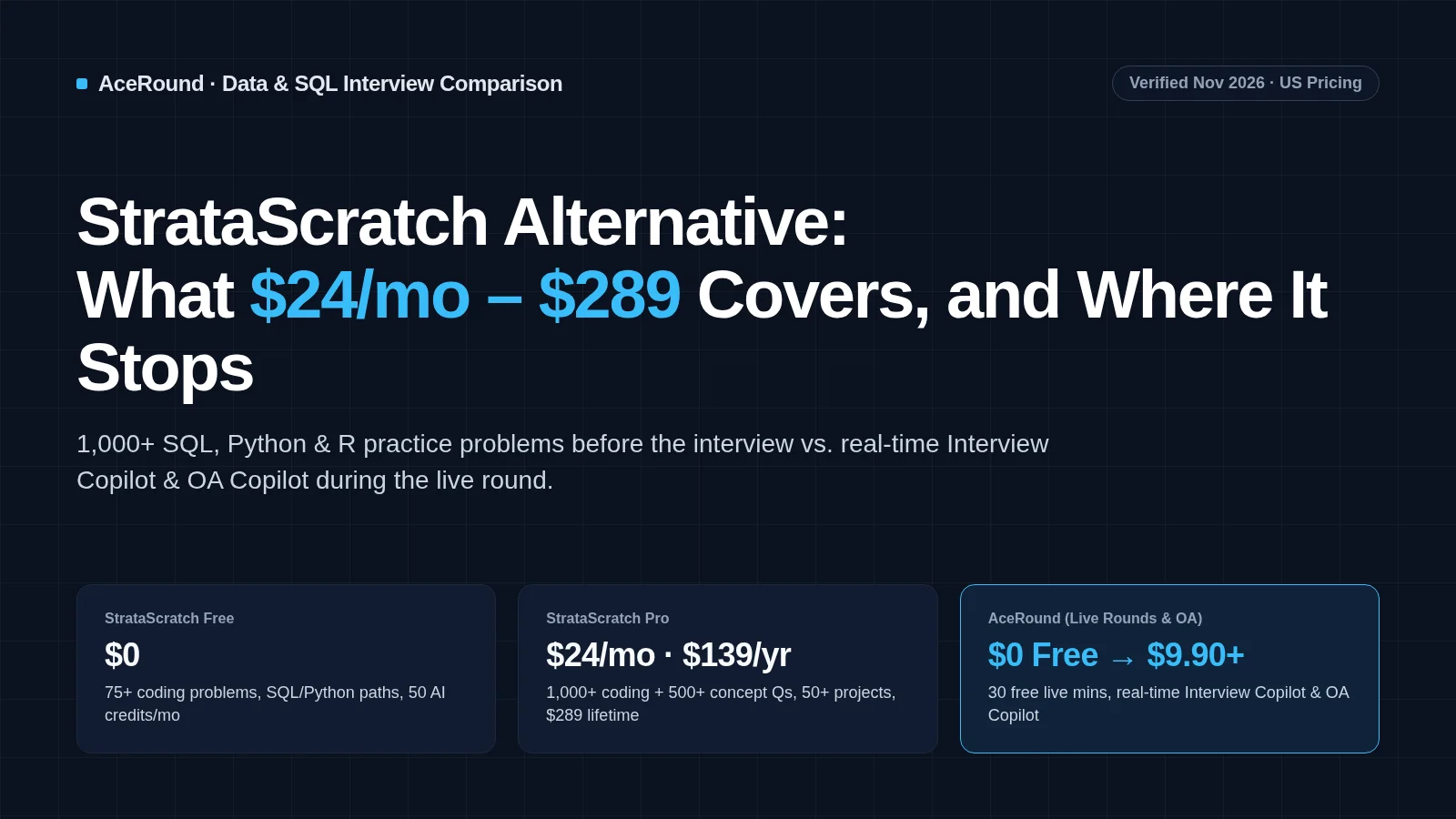
StrataScratch Alternative: What $24/mo–$289 Covers, and Where It Stops
StrataScratch Pro costs $24/mo, $139/year, or $289 lifetime. What the 75+ free SQL and Python problems cover, where Pro stops, and the live OA and interview alternative.
NeetCode Alternative: What $119–$297 Buys, and Where It Stops
NeetCode Pro costs $119/year or $297 lifetime with no monthly plan. What the free Blind 75 and NeetCode 150 already cover, where Pro stops, and the live OA alternative.
Can You Use AI on a CodeSignal GCA? Rules, Telemetry and Setup (2026)
CodeSignal bans AI on the certified GCA and ships its own Cosmo copilot on AI-assisted assessments. What each mode records, what the Suspicion Score reads, and where an external assistant fits the 70 minutes.