Does TestDome Detect Cheating? What Actually Gets Flagged
Does TestDome detect cheating? Only when an employer turns on proctoring. Here's exactly what its screen/webcam/AI review catches — and what it can't.
TL;DR: Does TestDome detect cheating? Only if the employer switched proctoring on for that specific test — it's an opt-in setting, not a platform-wide default. When it's on, TestDome's own support docs describe three layers: screen recording (catches visible AI tools, screenshot/OCR apps, DevTools), webcam snapshots every ~30 seconds (catches off-screen glances, extra devices, extra or missing people), and an AI system that reviews that footage afterward for unusual activity. TestDome also flags repeat attempts from the same IP or browser, and can lock the OS down with Safe Exam Browser. What it doesn't do: guarantee any of this is running by default, or claim its AI review is free of false positives — TestDome's own docs say flags are a hint for a human to check, not proof.
You got a TestDome link in your inbox for a job you actually want, and before you've even opened the test, you're trying to figure out what it can see. Is the webcam always on? Does it know if you Google something? Can it tell if you had a second monitor open? The honest answer is more specific — and less scary — than most "how to beat TestDome" content lets on: almost everything hinges on whether the employer turned proctoring on, and TestDome's own documentation is unusually direct about what that monitoring can and can't actually prove.
Proctoring Is an Employer Setting, Not a Platform Default
This is the detail most search results skip. TestDome's screen recording, webcam monitoring, and Safe Exam Browser lockdown aren't features baked into every assessment link — they're settings an employer configures when they build the test. A hiring team assessing junior developers with a 30-minute coding challenge might run it completely unproctored. A team hiring for a security-sensitive role might turn everything on.
That means the first honest question isn't "what does TestDome detect" — it's "did this specific employer enable proctoring." You generally can't tell from the test link itself; the permission prompts (camera access, screen-share consent) that appear when you start the test are your signal that monitoring is active for that assessment.
What TestDome Actually Monitors — When It's On
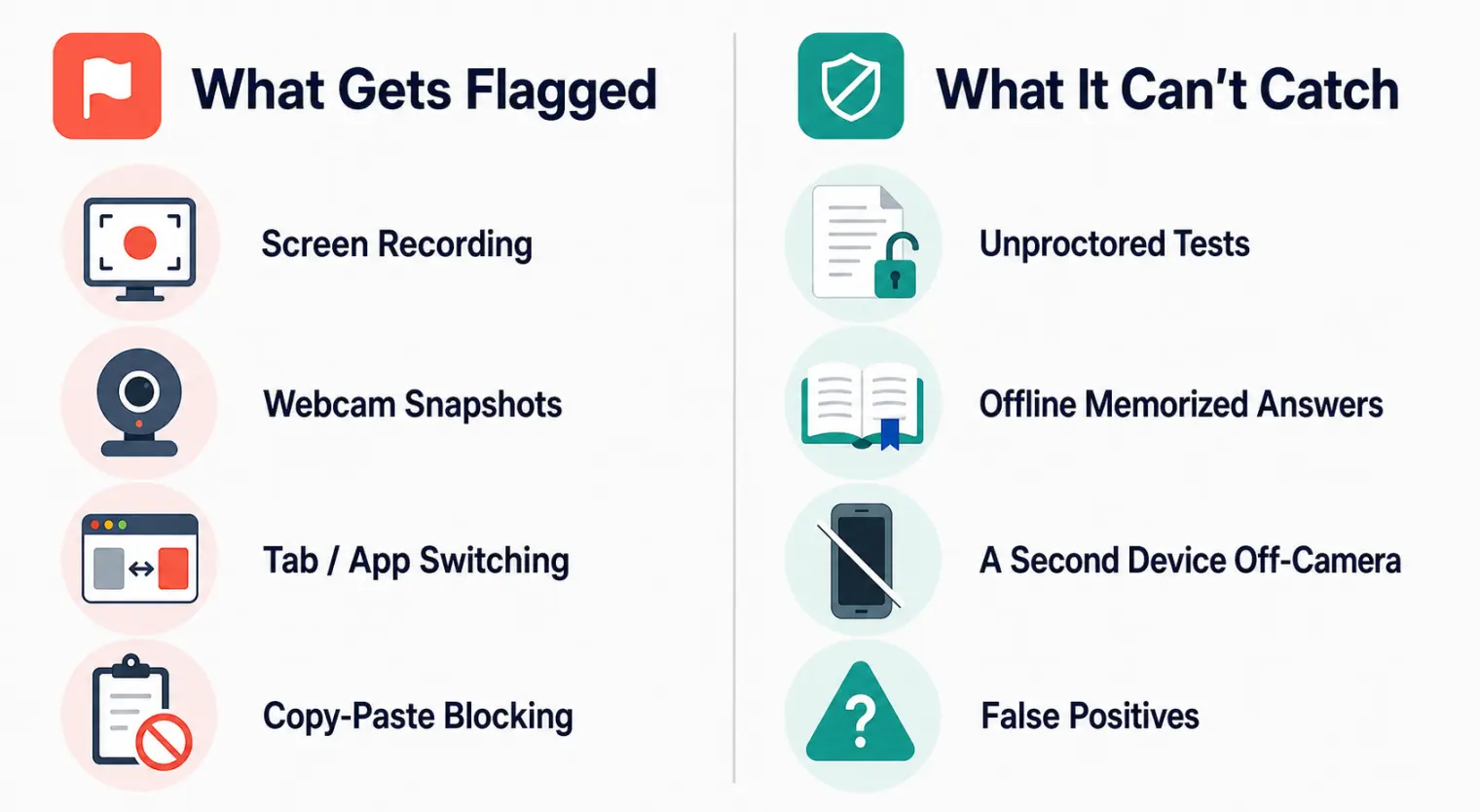
According to TestDome's own cheating-protection support article, when proctoring is enabled, the layers are:
- Screen recording. Catches visible AI assistants (ChatGPT, Gemini and similar), screenshot or snipping tools, OCR tools, and browser DevTools opened during the test.
- Webcam monitoring. Takes still snapshots roughly every 30 seconds — not continuous video — to check the candidate is present, alone, and not glancing at a phone or second screen.
- AI review. After the test, an AI system scans the recorded screen and webcam footage for the "unusual tools or activities" the platform documents, and generates flags for the employer to review.
- Copy-paste protection. Question text is protected from being copied out, which discourages searching for it verbatim online.
- Retake / proxy detection. TestDome checks for the same IP address or browser retaking a test under a different candidate identity.
- Safe Exam Browser (optional). Some employers additionally require Safe Exam Browser, which locks the OS down — blocking app switching, screenshots, and outside web access at the system level, specifically to catch AI tools that would otherwise be invisible to a browser-only screen recording.
- Tamper detection. Disabling proctoring mid-test, or the proctoring feed dropping out, is itself logged as an event.
What TestDome Can't or Doesn't Catch
The gaps matter as much as the coverage, and TestDome's own documentation is candid about several of them:
- Nothing runs if proctoring is off. Unproctored tests have none of the above — this is the single biggest variable, and it's set by the employer, not TestDome.
- False positives are explicitly acknowledged. TestDome's support docs state plainly that the AI model can flag actions that have an innocent explanation, and that any alert "should be treated as a hint to look closer, not as proof on its own."
- A second device outside webcam framing. Snapshot-based webcam checks every ~30 seconds can miss a phone or second monitor positioned outside the camera's field of view between snapshots.
- Answers memorized before the test. Content prepared and memorized offline — including from AI tools used before the session starts — leaves nothing to flag on-screen during the test itself.
- General research isn't the target. TestDome doesn't ban looking things up online; documentation and reference lookups are normal developer behavior. The systems are built to catch AI-generation tools specifically, not research in general.
- No permanent forensic record. TestDome's docs note that proctoring screenshots and recordings are auto-deleted after 60 days.
TestDome vs. Other Coding Assessment Platforms
TestDome's opt-in, employer-configured model is different from some other assessment platforms in this category. TestGorilla publishes a fixed three-tier behavior system (webcam snapshots, tab switching, full-screen exits, DevTools, IP checks, paste detection) that's part of its standard assessment flow. CodeSignal and Codility each have their own detection stacks and disclosure practices, and HackerRank's cheating-detection setup differs again in what's proctored by default versus opt-in. If your job search has you rotating through several of these platforms, it's worth checking each one's own support docs rather than assuming they all work the same way TestDome does.
How to Prepare Without Overthinking It
- Check for permission prompts when the test loads. A camera or screen-share consent request is the clearest sign proctoring is active for that specific assessment.
- Keep your webcam on and centered if proctoring is enabled — a missing or obstructed camera is one of the more obvious things a snapshot check can flag.
- Don't open a second AI chat window during a proctored test. If screen recording is on, a visible ChatGPT or Gemini tab is exactly what TestDome's own docs say the AI review is built to catch.
- Retype instead of paste if you drafted an answer elsewhere — it costs a minute and removes an ambiguous flag entirely.
- Take the test on your own device and network, since retake and proxy detection cross-references IP addresses and browsers across attempts.
- Put your remaining prep energy into the interview that follows. A TestDome assessment is almost always a screening step before a live conversation with a hiring manager — and that live round, not the take-home test, is where a real-time copilot like AceRound AI actually helps. For a broader comparison of tools built for that stage, see our best AI for technical interview guide, and for how detection compares across formats generally, this breakdown of online interview cheating detection.
FAQ
Can you cheat on TestDome?
It depends entirely on whether the employer turned proctoring on for that test. TestDome's screen recording, webcam monitoring and AI review are opt-in settings an employer enables per assessment — they are not switched on platform-wide by default. When proctoring is off, none of that monitoring runs. When it's on, TestDome's own support docs say the AI review can flag ChatGPT/Gemini windows, screenshot tools, OCR tools and browser DevTools on the recorded screen.
Does TestDome use your camera?
Only if the employer enabled webcam monitoring for that specific test. When it's on, TestDome takes still snapshots roughly every 30 seconds to check for off-screen glances, phones or tablets in frame, more than one person, or zero people — it is snapshot-based identity and presence checking, not a continuous video feed being actively watched in real time.
Does TestDome record your screen?
Yes, but again only when the employer has proctoring enabled. When it's on, TestDome's support docs list screen recording as the layer that catches visible AI chat windows, screenshot or snipping tools, OCR tools and browser developer tools. If proctoring isn't enabled for that assessment, there's no screen recording running at all.
Will TestDome flag me for something innocent?
TestDome's own support documentation admits this directly: it states that its AI model can flag actions with an innocent explanation, and that any automatic alert should be treated as a hint to look closer, not proof of cheating. That's a meaningfully more candid admission than most proctoring vendors make, and it means a flag alone isn't a rejection.
Does TestDome always proctor every test?
No. Screen recording, webcam monitoring and Safe Exam Browser lockdown are all settings an employer chooses to turn on per assessment — none of them are a mandatory, always-on layer across every TestDome test. A candidate taking an unproctored TestDome assessment isn't being screen- or webcam-recorded at all.
Author · Alex Chen. Career consultant and former tech recruiter. Spent 5 years on the hiring side before switching to help candidates instead. Writes about real interview dynamics, not textbook advice.
Related Articles
Does Cursor Allow AI in Interviews? Anysphere's Two-Sided Policy
Cursor's maker bans AI in round one to test raw skill, then hands you an 8-hour paid project where using AI well is the entire grade. Here's how the two rounds actually differ.

The Internal Transfer Interview: What Actually Changes at Google and Amazon
Fewer rounds doesn't mean lower stakes. How Google and Amazon's internal transfer mechanics — tenure rules, manager notification, bar raisers — actually differ from an external hire.
Databricks Interview: The Concurrency Round Nobody Warns You About
Databricks runs a full hour on multithreading alone, and reportedly grades system design in a Google Doc, not a whiteboard tool. Here's what candidates say.