TCS iON System Check: IRC, iON Launcher, and Every Error Fixed
How to pass the TCS iON system check (IRC and DRC), install the iON Launcher, handle Error 033, blank screens, and webcam blocks, and tell remote NQT rules apart from in-centre tests.
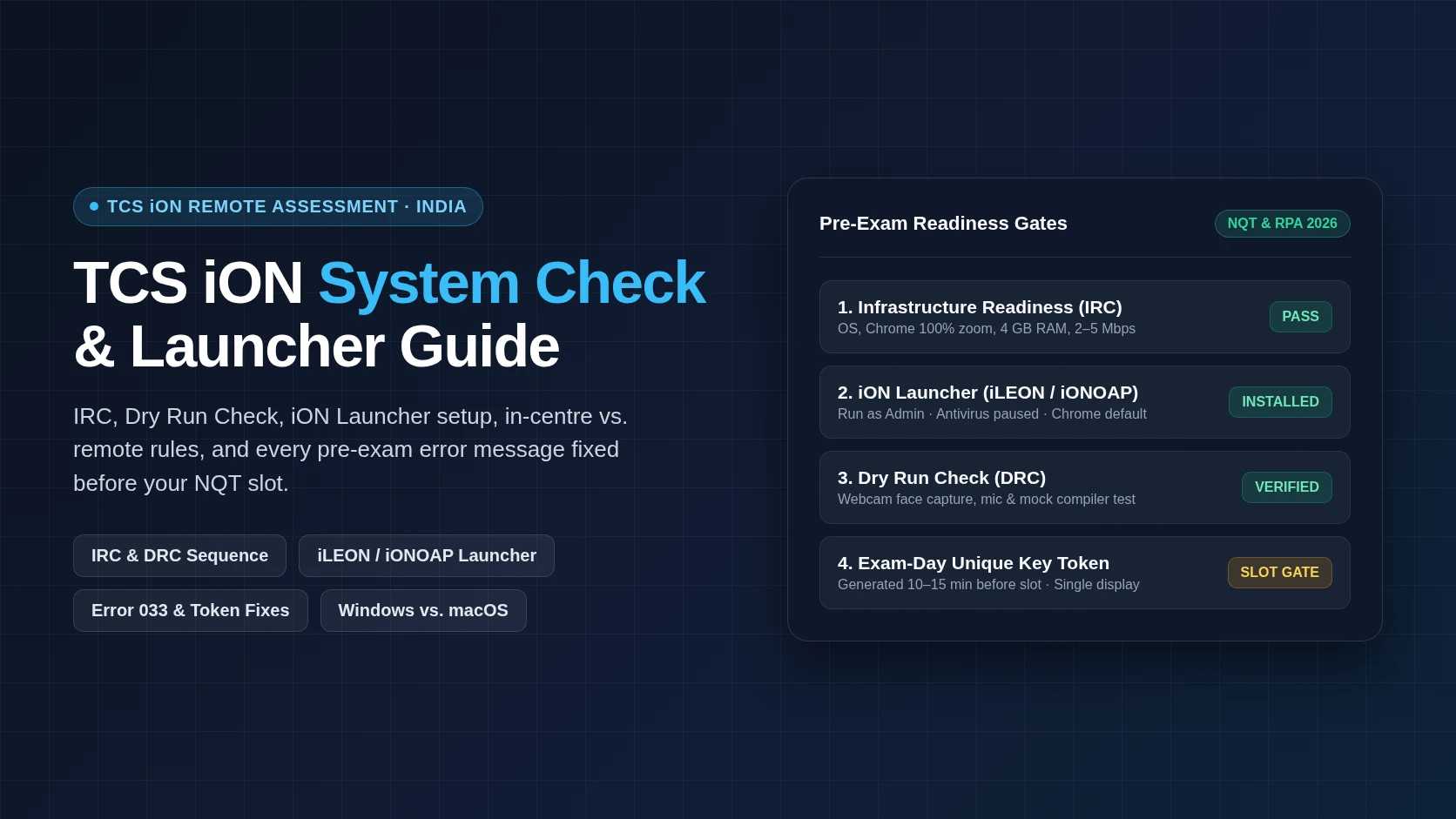
TL;DR: If your hall ticket assigns a TCS iON Remote Proctored Assessment (such as a home-based TCS NQT or university/corporate drive), four gates sit between you and the first question: the IRC (Infrastructure Readiness Check), the iON Launcher (iLEON / iONOAP) install, the DRC (Dry Run Check), and the unique launch key token generated 10–15 minutes before your slot. Most exam-day failures come from five preventable causes: using macOS/Safari instead of Windows 10/11 + Chrome, leaving Chrome zoom off 100%, keeping an old launcher copy on disk (Error 033), leaving Zoom/Teams/OBS holding the webcam, or letting an antivirus shield block the launcher socket. If your hall ticket lists a TCS iON Digital Zone (in-centre), skip all of this — the centre provides the workstation.
Two days before a TCS NQT or off-campus drive, every placement WhatsApp group fills with the same panic: iON Launcher opens to a blank white screen, Error 033 on launch, IRC passed on Chrome but webcam won't start in DRC, and can I sit this on a MacBook. Most replies mix up in-centre TCS iON Digital Zone drives with home-based Remote Proctored Assessments, or paste advice meant for HackerRank and AMCAT.
This guide covers the setup and troubleshooting layer line by line: what IRC and DRC actually check, how the iON Launcher and key token work, how in-centre and remote rules split, and how to clear every common error before your slot opens. If you are looking for what TCS iON's proctoring layer monitors once the paper starts, see our separate TCS iON proctoring and NQT detection breakdown.
First check: In-centre vs. Remote Proctored Assessment
Before installing anything, open your hall ticket (admit card) and check the exam mode. TCS runs assessments in two completely different modes, and candidates routinely waste hours troubleshooting a launcher they do not need.
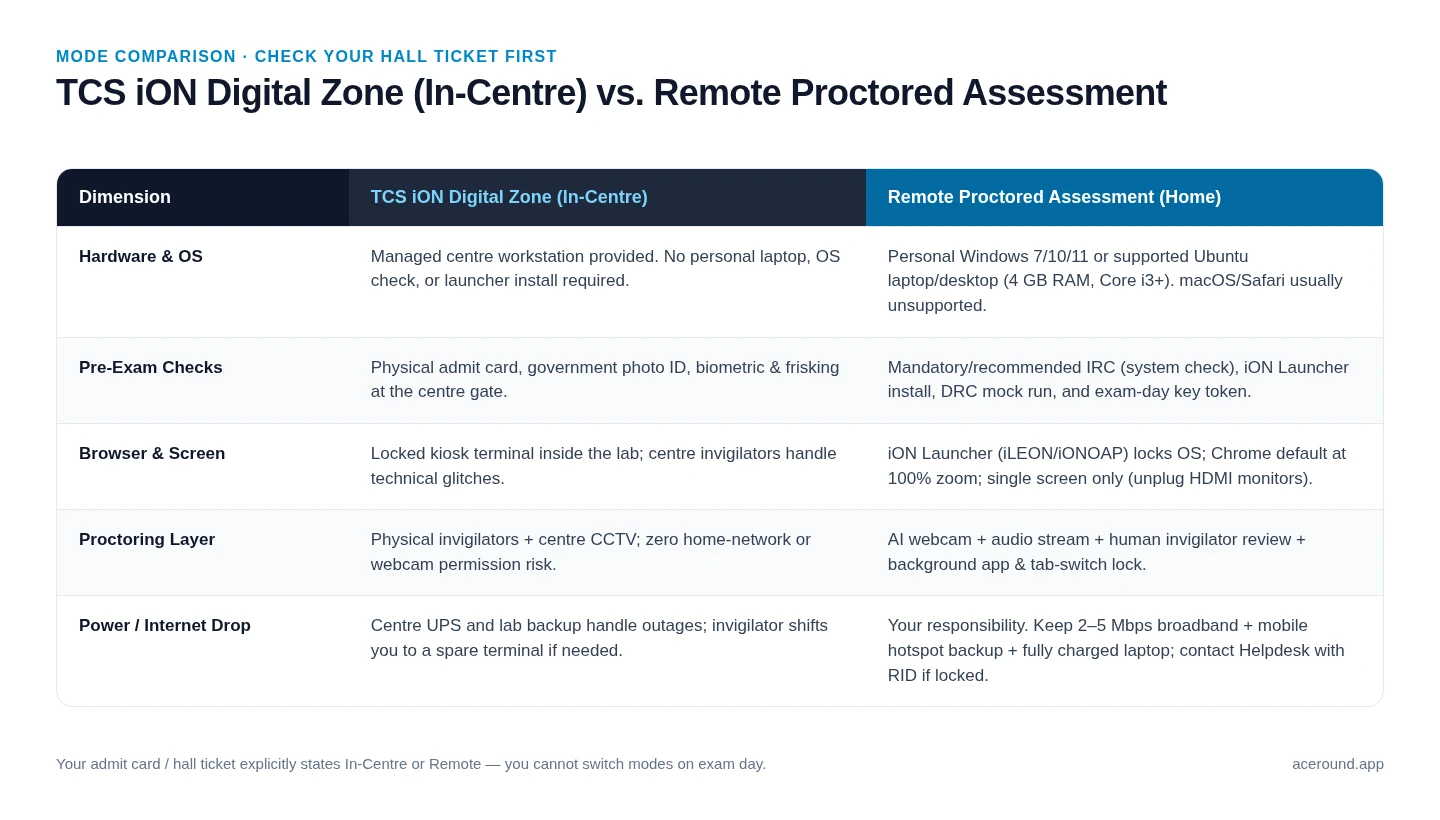
| Dimension | TCS iON Digital Zone (In-Centre) | Remote Proctored Assessment (Home) |
|---|---|---|
| Hardware & OS | Managed centre desktop provided; no personal laptop required | Personal Windows 7/10/11 or supported Ubuntu laptop/desktop; macOS/Safari usually unsupported |
| Pre-exam checks | Admit card, photo ID, and physical check-in at the venue | IRC (system check), iON Launcher install, DRC mock run, and slot key token |
| Environment | Locked centre lab terminal; invigilators fix machine glitches | iON Launcher (iLEON / iONOAP) locks OS; single display only (unplug HDMI monitors) |
| Power & internet | Centre UPS and backup terminals handle outages | Your responsibility: 2–5 Mbps broadband + mobile hotspot fail-safe + charged battery |
Everything below applies to Remote Proctored Assessments. You cannot switch between in-centre and remote on exam day.
The four pre-exam gates, in order
TCS iON's remote stack runs in a fixed sequence. Clearing each gate early gives you access to live chat support during the IRC window, when helpdesk queues are short.
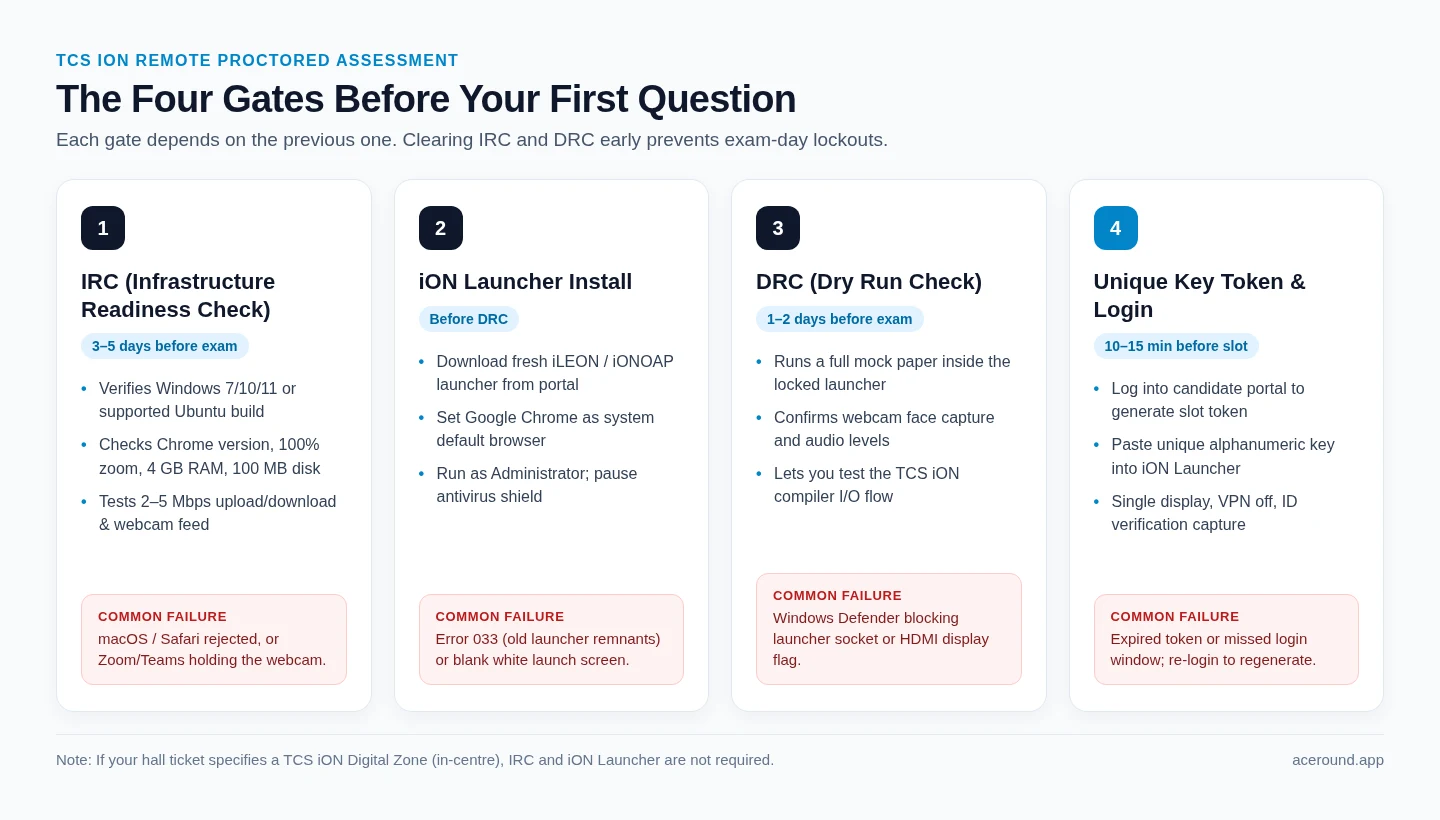
1. IRC — Infrastructure Readiness Check (3–5 days before)
The IRC link arrives in your assessment email or candidate portal. It runs an automated diagnostic of your operating system, browser compliance, disk write permissions, webcam feed, microphone, and live bandwidth.
Minimum system requirements to clear IRC:
- Operating System: Windows 7 (with latest service packs), Windows 10, or Windows 11. On Linux, only older Ubuntu builds (14.1 or 16) are historically listed; Ubuntu 18/20+ often fail or require patches. macOS (MacBook / iMac) and Safari are typically unsupported for TCS iON remote launchers. Mobile phones and tablets are rejected unless a specific exam explicitly permits them.
- Processor & RAM: Intel Core i3 (or equivalent) or higher, minimum 4 GB RAM, and at least 100 MB of free disk space.
- Browser: Latest stable Google Chrome, set as your default browser, with browser zoom set strictly to 100% and pop-up blockers disabled.
- Webcam & Microphone: Working built-in or external webcam and mic, unobstructed and not shared with another app.
- Internet: Minimum 2 Mbps upload/download; 5 Mbps or higher recommended so the continuous proctoring stream does not drop packets.
If you miss the IRC window, you are not automatically disqualified, and you can usually still complete the DRC. Skipping both leaves you discovering a driver or firewall block ten minutes before your NQT timer starts.
2. iON Launcher install (iLEON / iONOAP)
TCS iON remote exams do not run in an ordinary Chrome tab. You download an OS-specific secure launcher (commonly branded as iLEON or iONOAP launcher) from your candidate portal. Once opened, it locks down the desktop, closes unauthorized background apps, disables external shortcuts, and restricts secondary displays.
Three rules prevent 90% of launcher failures:
- Uninstall any older launcher first. Leftover files from a previous college drive or older NQT cycle are the primary trigger for Error 033 and blank screens.
- Set Google Chrome as your default browser before installing or opening the launcher.
- Run as Administrator on Windows (
Right-click → Run as Administrator) and temporarily pause third-party antivirus/firewall shields (McAfee, Norton, Kaspersky, or strict Windows Defender alerts) so the launcher can bind to the exam server and lock the taskbar cleanly.
3. DRC — Dry Run Check (1–2 days before)
The Dry Run Check is a rehearsal inside the actual iON Launcher. It tests two things IRC cannot: whether your antivirus or Windows SmartScreen interferes when the launcher enters locked mode, and whether your webcam face capture and coding compiler behave properly inside the full-screen wrapper.
Once the launcher passes DRC, do not re-download it for the real exam unless TCS iON pushes an explicit update notice. Use the exact same laptop, Windows user profile, and network on exam day.
4. Exam-day Unique Key Token (10–15 minutes before slot)
On exam day, log into the TCS iON candidate portal during the designated pre-exam login window. After identity verification, the portal generates a unique alphanumeric key/token tied to your session. Open your installed iON Launcher, paste the key token, and start the paper.
Tokens are time-sensitive. If your login window closes or the token expires before you launch, close the launcher completely, log back into the portal, and generate a fresh token rather than retrying the stale string.
Every common TCS iON error, and the exact fix
| Symptom / Error | What is actually causing it | How to fix it |
|---|---|---|
| Error 033 on launch | Corrupted install or multiple older TCS iON launcher copies left on disk | Uninstall all old launcher versions, clear Chrome cache/cookies, download a fresh installer from the active portal link, and reinstall |
| Blank white screen / no browser options | Conflict with Google Chrome or Chrome not set as default browser | Uninstall Chrome and the launcher, install the latest stable Chrome, set Chrome as system default, then reinstall the launcher |
Launcher .exe refuses to open |
Missing elevated privileges or Windows compatibility conflict | Right-click → Run as Administrator. If it still fails, open Properties → Compatibility, enable compatibility mode for Windows 10 or Windows 7, and apply |
| Invalid or expired key token | Token copied with leading/trailing spaces or generated outside the active slot window | Close the launcher completely, re-login to the candidate portal, generate a fresh token, and paste without extra spaces |
| Camera / microphone not detected | Another app (Zoom, Teams, Skype, Meet, WhatsApp Web, OBS) is holding the device, or OS/antivirus privacy shield is blocking it | End conferencing/virtual-camera tasks in Task Manager (Ctrl + Shift + Esc), enable Windows Settings → Privacy & security → Camera & Microphone for desktop apps, allow site access in Chrome, and pause antivirus webcam protection |
| Display / HDMI violation or disconnect | An external monitor or TV is connected via HDMI, or screen mirroring is active | Unplug every HDMI / external display cable before launching and sit the exam on your single native laptop screen |
| Blocked network / mid-exam disconnect | Active VPN, proxy, hostel firewall, or unstable Wi-Fi handoff | Turn off VPNs and proxies, stay on one stable 2–5 Mbps broadband line (do not switch networks mid-test), and keep a mobile hotspot ready only as a last-resort backup |
If a technical failure locks you out mid-exam
Do not keep hammering the launch button with an expired token. Take a clear photo or screenshot of the error message along with your system details, then immediately contact the TCS iON Helpdesk (toll-free number or support email printed on your hall ticket) with your Registered ID (RID) ready.
If your placement calendar includes multiple drives in the same fortnight, the exact same pre-test gate appears under different wrappers on other Indian platforms — see our HackerEarth Smart Browser setup guide, AMCAT exam instructions and lockdown browser walkthrough, HirePro assessment system check, and CoCubes system check guide.
Night-before checklist (10 minutes)
- Confirm your hall ticket mode (Remote vs. TCS iON Digital Zone).
- Verify you are on a Windows 10/11 machine with at least 4 GB RAM and 100 MB free space, not a MacBook or tablet.
- Set Google Chrome as default browser, update it, set zoom to 100%, and turn off pop-up blockers.
- Remove any old iON Launcher builds and confirm your current launcher opens cleanly as Administrator.
- Unplug external HDMI monitors, close Zoom/Teams/Discord/OBS from Task Manager, and pause antivirus webcam/firewall shields for the exam window.
- Charge the laptop to 100%, keep the charger plugged in, and keep your hall ticket, RID, and Helpdesk number open on a separate note outside your testing machine.
After the system check: OA stage vs. live interview stage
Clearing the technical gate only gets you to question one. A TCS NQT drive splits into two distinct environments: the online assessment (Numerical, Verbal, Reasoning, Programming Logic, and Coding on the TCS iON compiler) and the subsequent technical and HR interview (a live 20–90 minute video or in-person conversation depending on whether you are routed to Ninja, Digital, or Prime).
That split determines which tools help at each stage:
- During online assessments: AceRound AI's OA Copilot — built for online assessments on HackerRank, CodeSignal, Codility, and TCS iON — runs as a desktop client that reads the problem on your screen and streams the approach and solution into a click-through overlay (quick mode covers up to 4 pages for aptitude and MCQ items; programming mode covers up to 6 pages per coding problem). For locked-down exam clients on Windows, check the OA Copilot documentation for the native-window route and review the supported platform list before your drive. New accounts start with 30 free minutes, no card required.
- For the technical and HR interview after shortlisting: Once you clear the NQT cutoff, the interview is a live human panel covering DSA, OOPS, DBMS, OS fundamentals, and project walkthroughs. Interview Copilot supports live technical and behavioral rounds in real time, mock interview mode lets you rehearse think-aloud explanations beforehand, and question prediction surfaces company-specific prompts. Our TCS, Infosys, and Wipro interview prep guide maps out the exact Ninja, Digital, and Prime interview patterns.
- Applying across multiple off-campus drives: If you are juggling applications across TCS, Infosys, Wipro, Cognizant, and product-based drives at the same time, AceRound Auto Apply fills official company career portals inside your desktop Chrome and pauses before Submit so you stay in control.
FAQ
What is the TCS iON IRC (Infrastructure Readiness Check)?
The Infrastructure Readiness Check is TCS iON's pre-exam diagnostic window, usually opened three to five days before a Remote Proctored Assessment. It checks your operating system, Google Chrome version, browser zoom (100%), available disk space, webcam feed, microphone, and upload/download speed so you can fix blockers before your exam slot.
What is the difference between IRC and DRC in TCS iON?
IRC (Infrastructure Readiness Check) tests your hardware, network, and browser compliance. DRC (Dry Run Check) is a full mock run inside the iON Launcher, usually one to two days before the actual exam, so you can verify face capture, launcher permissions, and the TCS iON compiler interface before exam day.
Does the TCS iON Launcher work on Mac (macOS) or Safari?
For most TCS iON remote assessments, macOS and Safari are not supported by the standard iLEON / iONOAP launcher. Supported operating systems are Windows 7 (with latest service packs), Windows 10, Windows 11, and specific older Ubuntu builds (14.1 or 16). Check your hall ticket early and arrange a Windows laptop if your only machine is a Mac.
How do I fix TCS iON Error 033 or a blank white launcher screen?
Error 033 and blank screens usually come from older launcher installations or a browser conflict. Uninstall every old TCS iON launcher copy, clear your browser cache, install the latest Google Chrome and set it as your default browser, then download a fresh launcher from your active assessment portal and run it as Administrator.
Where do I get the TCS iON Launcher key token on exam day?
Log into your TCS iON candidate portal during the pre-exam login window (typically 10 to 15 minutes before your scheduled slot). The portal generates a unique alphanumeric launch key/token for your session. Copy and paste that token into the open iON Launcher to unlock the test.
Do I need to run IRC or install the iON Launcher for an in-centre TCS NQT exam?
No. If your hall ticket assigns you to a TCS iON Digital Zone (in-centre), the centre provides managed workstations and handles the exam environment. You only need your printed admit card and valid government photo ID.
What happens if my internet or power drops during a TCS iON remote exam?
A brief drop can trigger a session disconnect. Do not switch Wi-Fi networks repeatedly or plug in external displays. Reconnect on a stable 2–5 Mbps line; if the launcher locks you out or rejects your token, take a screenshot of the error and contact the TCS iON Helpdesk listed on your hall ticket with your Registered ID (RID).
Do I need to re-download the iON Launcher for the actual exam after DRC?
No, unless TCS iON pushes a new build or your hall ticket explicitly instructs a fresh download. Keep the same working Windows laptop, the same Chrome profile, and the same launcher installation that passed DRC.
Author · Alex Chen. Career consultant and former tech recruiter. Spent 5 years on the hiring side before switching to help candidates instead. Writes about real interview dynamics, not textbook advice.
Related Articles
Unstop Assessment Proctoring: Full-Screen, Tab Switches, and SmartHire
How Unstop online assessments proctor campus and off-campus drives: Basic, Standard, and Advanced tiers, full-screen violations, SmartHire virtual camera errors, and the Tab-key focus bug.
HirePro Assessment: Tenant Alias, System Check, and Every Error
What a HirePro assessment checks before the paper: the tenant alias screen, the compatibility check, each error message, and the Secure Exam Browser route.

CoCubes System Check: Every Test It Runs, and What Each Error Means
assess.cocubes.com/check-system runs twelve checks before a CoCubes drive. What each one tests, what the four Error 3.x screens mean, and the Windows-only SAB step.