HackerEarth Smart Browser: System Check, Errors and Setup
Smart Browser is the desktop app some HackerEarth assessments run inside. The install order, every pre-test check, the exact error messages and the fix for each.
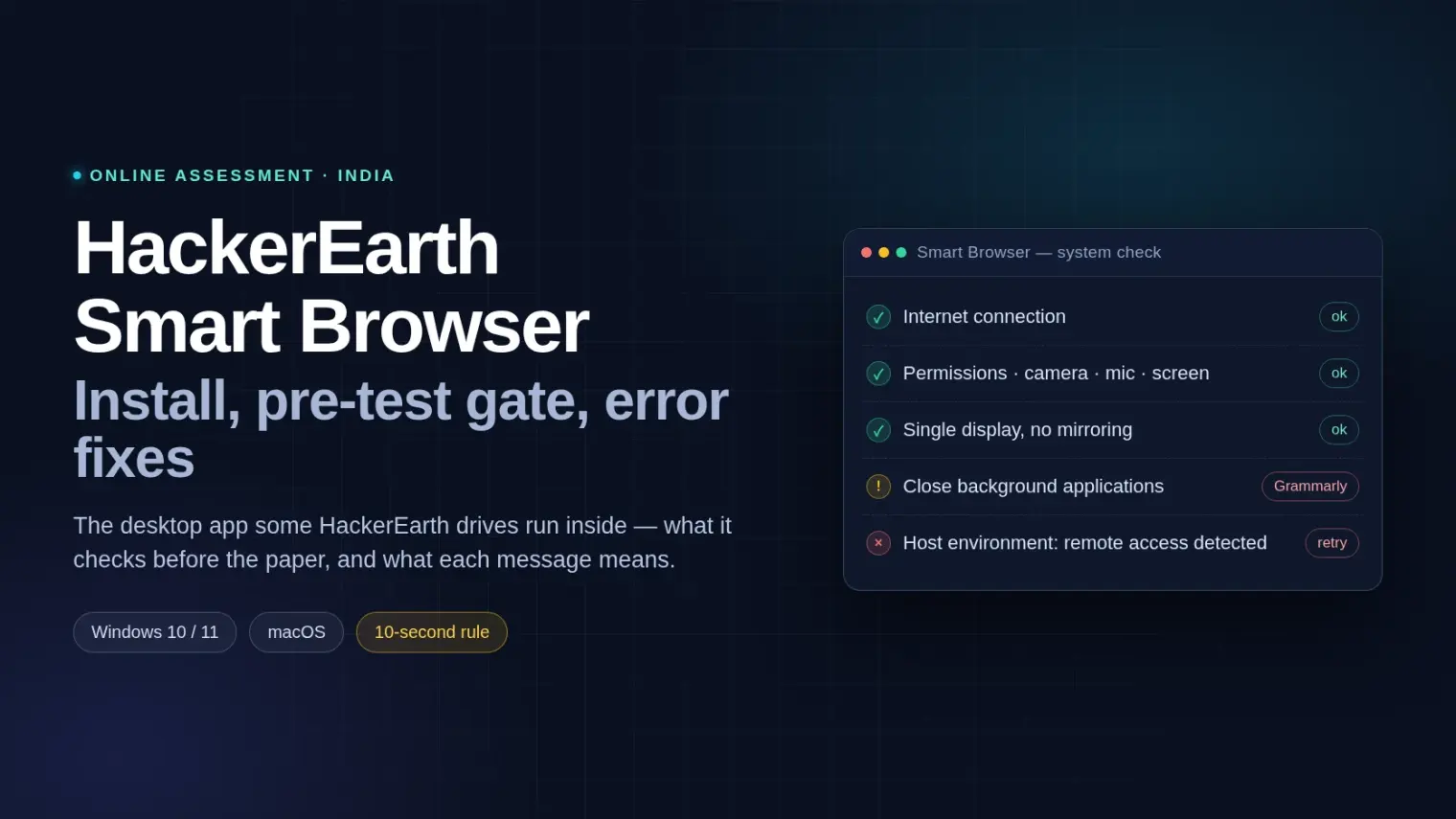
TL;DR: HackerEarth Smart Browser is a desktop application, not a browser tab. When an employer enables stricter proctoring, your assessment only opens inside it: you install the app from your invitation, click Start in the invitation so the session is handed over, and the app runs a gate before the paper — internet, Visual C++ on Windows, an update, camera and microphone permissions, one display, HackerEarth's domains, background applications, and a test agreement. Most candidates get stuck on one of a dozen documented messages, and every one of them has a specific fix. During the paper, leaving the test window gives you about ten seconds to come back before the session can end.
Two days before an off-campus drive, the placement group fills with the same question: the link says HackerEarth, but it wants an application installed first. Half the answers in that thread are about the browser test environment, which is a different thing, and the other half are about "bypassing" a lockdown that mostly does not need bypassing — it needs one clean install and the right permissions granted in the right order.
This page is the setup side: what the app is, what it checks, and what each error message means. If you want to know what the session records and what gets flagged during the paper, that is a different question and our HackerEarth proctoring breakdown covers it.
What Smart Browser is, and how you know your test uses it
Smart Browser is a separate desktop program that HackerEarth ships for assessments where the employer wants stricter control than a browser tab can give. HackerEarth's own recruiter documentation describes it as "a secure desktop application designed to conduct a fair, secure assessment" and says it is switched on per test from the proctoring settings. Two candidates on the same platform can therefore sit two very different exams: one in Chrome, one inside Smart Browser.
You do not choose. The invitation does. If the email or the HackerEarth page gives you a Smart Browser download for your operating system, that drive is running in Smart Browser, and the browser you normally use is not part of the test at all.
Three things follow from that, and they cause most of the confusion:
- It is not an extension and not a browser. Nothing to add to Chrome. The app is the test environment.
- The download comes from your invitation, not from a search result. There is no public download link to hunt down — the installer is tied to the drive you were invited to.
- You start the test from the invitation, every time. Smart Browser does not take a typed URL. The Start link in your email or on the HackerEarth page passes the session to the app.
Operating systems: the official pages disagree
This is worth knowing before you borrow a laptop, because HackerEarth's own documentation is not consistent:
| Page | What it lists |
|---|---|
Candidate flow page (help.hackerearth.com/smart-browser) |
Windows 10 and above, including Windows 11; macOS 11 (Big Sur) and above, Apple Silicon |
| Candidate troubleshooting page | Windows 10+ and macOS 10.14+; "Linux is not supported" |
| Recruiter settings page | Windows 10 and 11; Ubuntu 20.04 and 22.04; macOS 13.5 Ventura and above |
The Windows line is safe: Windows 10 or 11. For macOS, treat Big Sur (11) as the floor and expect Ventura or newer to be the safest bet. Linux is genuinely unresolved in the public docs — the recruiter page lists Ubuntu while the candidate page says it is unsupported — so if your only machine runs Linux, ask the recruiter which build your drive uses before the day of the paper.
Two different checks carry similar names
HackerEarth also runs a browser-side readiness page at hackerearth.com/system-check/. It is public, needs no login, and checks a different set of things: operating system, browser version, screen size (it wants 1280×768 or above), JavaScript, cookies and a five-minute timer. That page is for assessments taken in a normal browser.
Smart Browser's own gate is the one described below, and it runs inside the app. Passing the browser page tells you nothing about whether Smart Browser will launch. If your drive runs on CoCubes instead, the equivalent walkthrough is our CoCubes system check guide.
The install order that works
The sequence matters more than it should, because the last step is the one people skip.
- Download the installer from the invitation on the laptop you will actually sit the paper on. Not a friend's machine, not a lab machine you will not get again.
- Install it and open it once. If Windows shows "Windows protected your PC" for a new installer, that is SmartScreen being cautious about an unrecognised download: More info, then Run anyway. If the machine asks for an administrator password, you need the owner present; college lab machines are usually locked down.
- Let it update if it asks. The in-app update is the supported path; installing an older copy you found elsewhere is how version mismatches start.
- Go back to the invitation and click Start. The browser hands the session to Smart Browser through a link. If the app was already open and you copied the session link, it may detect it and show Resume your session.
- Complete the gate, close the listed applications, accept the test agreement, and the secured window opens.
One detail that saves people: quitting another browser instance is sometimes what unsticks the handover. If clicking Start does nothing, open Smart Browser once from the Start Menu or Applications folder, then return to the invitation and click Start again.
The gate before the paper, stage by stage
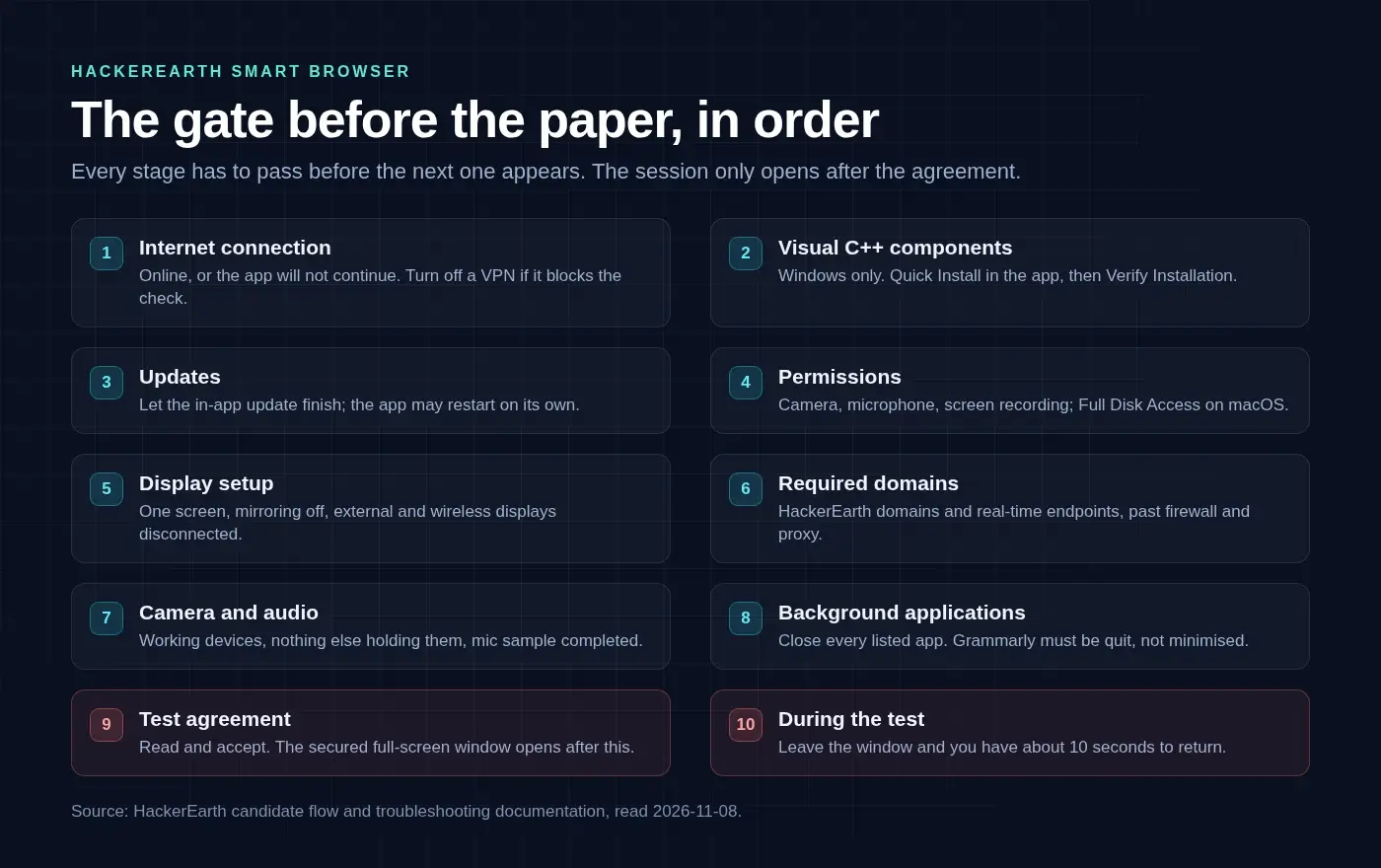
Smart Browser walks through these in order. Each one has to pass before the next appears.
| Stage | What it is doing | What it wants from you |
|---|---|---|
| Internet connection | Confirming the app can reach HackerEarth | Wi-Fi or Ethernet that is actually online; turn off a VPN if it blocks the check |
| Visual C++ components (Windows) | Checking the runtime the app needs | Use Quick Install in the app, or install Microsoft's redistributable and click Verify Installation |
| Updates | Making sure the client is current | Let it finish; the app may restart on its own |
| Permissions | Camera, microphone, screen recording; Full Disk Access on macOS | Grant each one when asked, then Quit & Reopen if macOS says so |
| Display setup | Looking for mirroring or extra screens | One screen, mirroring off, external and wireless displays disconnected |
| Network and required services | Reaching HackerEarth domains, including real-time endpoints | A network without a firewall, proxy or DNS filter in the way |
| Camera and audio | Opening the devices the session will use | A working camera and microphone, nothing else holding them |
| Background applications | Listing apps that must not run during the test | Close them, or let the app try; some have to be quit by hand |
| Test agreement | The rules of the session | Read and accept |
The permissions step is where Mac users lose the most time. macOS does not always list SmartBrowser under Privacy & Security until the app has asked for something at least once, so open the app first, let the wizard run, and only then look for the toggles.
Every pre-test error, and the fix
These are the failures HackerEarth documents for the pre-test gate, with the message you will see and the fix that clears it.
"No Internet Connection" when the app opens. The app checks connectivity before anything else and will not continue offline. Confirm Wi-Fi or Ethernet, turn off a VPN briefly if one is running, then click Reload.
Windows: "Microsoft Visual C++ Required". The Visual C++ runtime is missing. Use Quick Install inside Smart Browser, or download the redistributable from Microsoft, install it, and click Verify Installation. It is a common first-run failure on a freshly imaged Windows machine, so install early rather than in the last hour.
Update check failed, or the app sits on updates. Check the network and click Try again, and let the update run to the end — the app may restart by itself. On a corporate-managed machine, the update may follow IT policy instead, which is a conversation with your placement coordinator rather than a fix you can apply.
Permissions missing (camera, microphone, screen recording, and Full Disk Access on macOS). Follow the on-screen wizard. On macOS: System Settings → Privacy & Security → allow SmartBrowser for each permission, then use Quit & Reopen if prompted. On Windows: open Windows Settings from the wizard, allow SmartBrowser, and come back to the app — it re-checks when the window regains focus.
Display setup fails (mirroring or multiple displays). Turn off screen mirroring, disconnect external monitors and wireless displays, use only the primary laptop or desktop screen, then retry the check.
Required domains or real-time services fail. Something between you and HackerEarth is blocking the app: a company firewall, a proxy, DNS filtering, or security software. The app needs HTTPS access to HackerEarth domains, including the real-time endpoints it uses during the session. On a college or office network this is an IT request, and it is worth making it a day early rather than ten minutes before the paper.
Connection quality fails. HackerEarth asks for roughly 512 kbps of download or better. Move to a stronger network rather than a hotspot in a corridor, close heavy downloads, and retry.
"Host environment: virtual machine detected". The app will not run inside a VM. Use a physical machine.
"Host environment: remote access detected". A remote desktop or remote-control tool is active. Disconnect it and retry. On Windows, the app offers a shortcut into Remote Desktop settings: turn Remote Desktop off, disconnect active sessions, then retry. This is a gate, not a warning — the test does not start with a remote session live. If your drive runs on a different platform, the same check exists in HackerRank's Secure Mode and Proctor Mode.
Camera check fails ("couldn't open", timeout, "in use", dark or blocked). Allow camera access for Smart Browser, close anything else holding the camera (video calls, virtual cameras, Windows Hello helpers if they interfere), open a physical shutter if the laptop has one, and improve the light on your face. On laptops with more than one camera, the app tries the available devices itself.
Audio check fails. Allow microphone access, complete the short microphone sample and the speaker playback when prompted, and unmute both speakers and headphones.
"Asked to close background applications". Close every app in the list, or choose Try closing automatically. Anything left has to be quit manually in the operating system and then retried. Writing assistants are the classic offender: Grammarly and similar tools must be fully quit, not minimised or left in the tray.
Session link not detected, or the welcome screen waits for Start. Go back to your invitation email or the HackerEarth page and click Start. Or copy the session link, open Smart Browser, and use Resume your session if it appears. Do not type the URL into the app.
Smart Browser does not open when you click Start. Confirm the app is installed, quit other browser instances if the handover seems stuck, open Smart Browser once from the Start Menu or Applications folder, then click Start in the invitation again. If it still will not take, copy the invitation link and use the clipboard Resume option after the system checks.
macOS: the app is not listed under Privacy & Security. Open Smart Browser and complete the permissions wizard so the operating system registers the app, then enable Camera, Microphone, Screen Recording and Full Disk Access as prompted. Restart the app if it still does not appear.
During the paper: the ten-second rule and the keys that stop working
Once the session starts, Smart Browser runs full screen and holds it there. HackerEarth's recruiter documentation lists what the app prevents: sharing or recording the test window, screenshots, opening or switching to other applications, resizing the window, multiple monitors, running inside a virtual machine, and opening browser developer tools. Operating-system notifications are blocked, and screen-sharing and screen-recording tools are disabled.
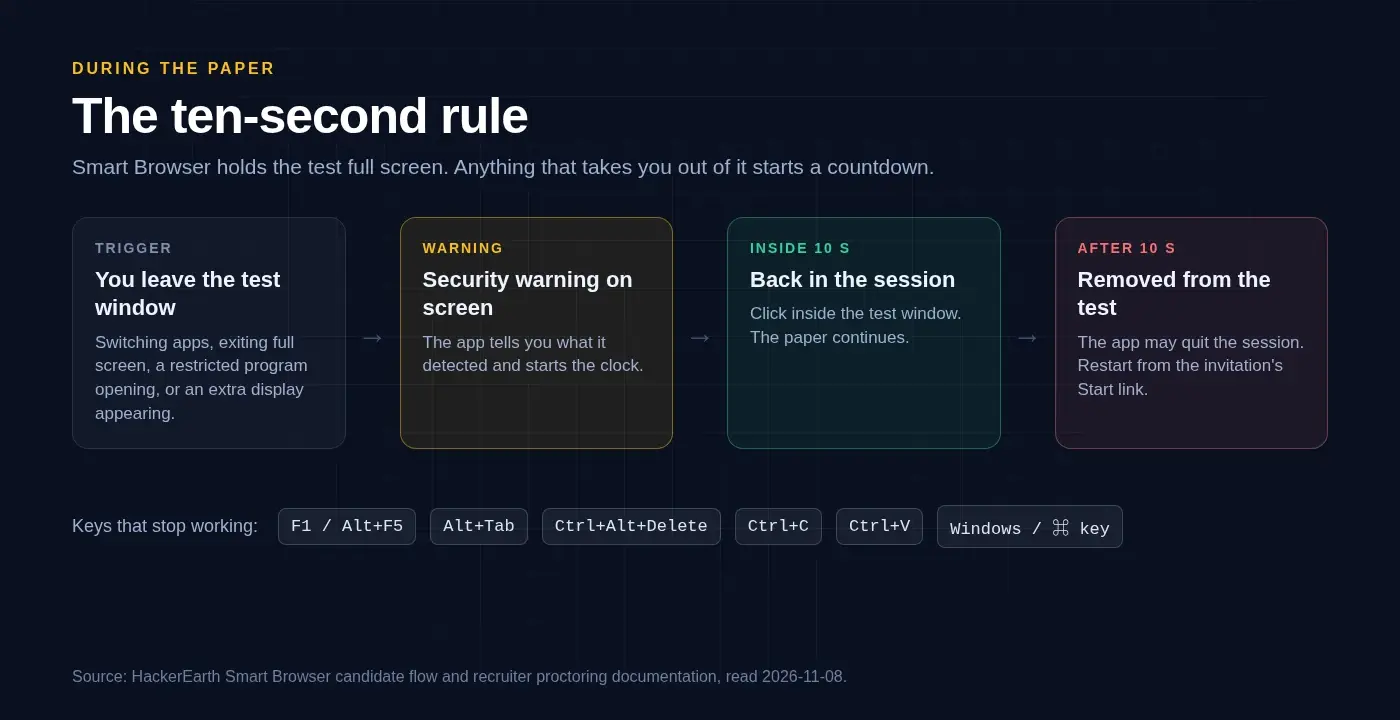
A set of keyboard shortcuts is also disabled: function keys and their combinations (F1, Alt + F5 and similar), Alt + Tab, Ctrl + Alt + Delete, Ctrl + C and Ctrl + V, and the operating-system keys — the Windows key, the Mac Command key and their combinations.
Three behaviours surprise people mid-test:
- The warning is on a timer. Leave the test window, switch applications, or trigger a restricted app and you get a security warning. You have about ten seconds to get back inside the session window before you can be removed from the test. The same countdown applies to an external or mirrored display that appears mid-test — unplug it or turn mirroring off inside those ten seconds or the app may quit.
- An inbound remote-access warning is not the end of the test. If a remote session connects while you are writing, the app warns you. HackerEarth's troubleshooting page says the warning does not end the test by itself, but remote access violates policy and is recorded, so disconnect it immediately.
- Black screenshots are by design. If you try to screenshot or record the test window, you get a black frame. That is the protection working, not a bug to fix.
If the connection drops mid-paper, use Retry Now if the app offers it, or wait for the automatic retry, and check that your network is still up. If you see a fatal URL or DNS error, verify connectivity and relaunch from the invitation's Start link rather than reloading inside the app. On Windows, if the taskbar covers a Submit or Run button, click inside the test window — the taskbar is normally hidden during a secured session — or use the session refresh control if one is shown.
Is Smart Browser safe?
The honest answer is that it is invasive by design and constrained in what it says it collects.
The permissions it requests are camera, microphone and screen recording, plus Full Disk Access on macOS. Full Disk Access is the one that makes people stop and read, because it sounds like handing over the whole disk. HackerEarth's candidate documentation addresses this directly: Full Disk Access is a permission gate only, and SmartBrowser does not read or upload your personal files.
What the app does with the screen is the other half. It protects the assessment window from capture — screenshots and recordings come out black — and it disables screen-sharing tools for the duration. When the test finishes, the app leaves secure mode and restores normal system access.
What it does not do, according to HackerEarth's own material, is a single universal recording of everything. Video proctoring, audio proctoring and the Smart Browser environment are separate layers that an employer enables per test, and the reporting that follows is a document a recruiter reviews. The detection page goes through those layers one by one if that is the part you are worried about.
Two practical notes. First, if a permission request still feels excessive for the role you are applying to, ask the recruiter which checks your assessment actually enables — configuration is per test, so they can answer it. Second, this is a lockdown tool, not a security product aimed at you personally; the reason it asks for so much is that a test window it cannot see into is the only way it can promise an unassisted score.
The sample-test question
There is no public Smart Browser demo. HackerEarth's practice test familiarises you with the platform's question types and navigation, but it runs in a browser, so it does not rehearse the gate, the permissions, or the ten-second rule.
What you can rehearse, and should, is everything up to the gate:
- Install the app on the laptop you will use, and get it to launch without an error.
- Grant camera, microphone and screen-recording permissions, and confirm on macOS that SmartBrowser now appears in Privacy & Security.
- Run the public browser readiness page if your drive also includes a browser-based round.
- Sit HackerEarth's practice test to see the question types, the code editor and the submit flow.
The gate itself opens when you start your real session, which is why the install belongs a day early rather than an hour early. A permission prompt you have never seen before is a bad thing to meet with a countdown running.
The evening before
- Install Smart Browser and open it once. Fix anything it complains about now, not tomorrow.
- Grant every permission, then quit and reopen the app to confirm they stuck.
- Disconnect the second monitor, the TV over HDMI and any wireless display. Use the laptop screen alone.
- Fully quit Grammarly, translation overlays and messaging apps. Minimised is not quit.
- Confirm the network you will use reaches HackerEarth — a college firewall is the usual surprise here, and it is not something you can fix at 9:55.
- Charge the laptop and keep the charger plugged in. A battery that dies mid-test looks exactly like leaving the session.
- Open the invitation once to confirm the Start link still works, then leave the tab alone.
After the machine is cleared, the paper starts
None of this tells you anything about the questions. A HackerEarth drive is usually an aptitude or MCQ section, a programming section, sometimes SQL or a domain paper, in whatever combination the employer configured — and then the interview rounds for everyone who clears the cutoff.
That second part is where AceRound AI sits. OA Copilot is a desktop client for online assessments — it reads the question on your screen and streams the approach and the answer into an overlay beside it, with a quick mode for MCQ sections and a programming mode for coding questions. It works on browser-based tests such as HackerRank, CodeSignal, Codility and HackerEarth's standard environment; for a locked-down Smart Browser session, check the platform list for the current state before you plan around it. For the HR and technical rounds that follow, Interview Copilot handles the live conversation, mock interview mode lets you rehearse it out loud first, and question prediction gives you the questions that employer actually asks. Thirty free minutes, no card required.
FAQ
What is HackerEarth Smart Browser?
A desktop application that HackerEarth assessments run inside when the employer turns on stricter proctoring. It is not a browser tab and not an extension: you install it, open it, and then click Start in your invitation so the test opens inside the app. While the paper is open it runs full screen, blocks other applications, disables copy and paste, and ends the session if you stay away from the test window for about ten seconds.
Is HackerEarth Smart Browser safe?
It asks for camera, microphone and screen-recording permissions, and on macOS for Full Disk Access as well, which is why it worries people. HackerEarth's own candidate documentation states that Full Disk Access is a permission gate only and that SmartBrowser does not read or upload your personal files. The app protects the test window from screenshots and screen recording, and it exits secure mode and restores normal system access when the test ends. If a permission request still feels wrong to you, ask the recruiter which checks your specific assessment enables before you install.
Where do I download Smart Browser?
From your HackerEarth invitation email or the HackerEarth page where you registered for the drive. There is no public download page you should be using instead. Install it once, open it once, then go back to the invitation and click Start — that link is what hands the test to the app.
Does Smart Browser work on Mac and Linux?
Mac: yes, but the official pages disagree on which versions. The candidate flow page lists Windows 10 and above plus macOS 11 (Big Sur) and above on Apple Silicon, the troubleshooting page still says macOS 10.14+, and the recruiter-facing page lists macOS 13.5 Ventura and above. Linux is the bigger problem: the recruiter page lists Ubuntu 20.04 and 22.04, while the candidate troubleshooting page says Linux is not supported. Ask the recruiter before you plan around a Linux laptop.
Why does Smart Browser say it cannot detect my session?
You are on the welcome screen without a test to open. Smart Browser never takes a typed URL — go back to the invitation email or the HackerEarth tab and click Start, which passes the session to the app through a link. If you copied the session link instead, the app can pick it up from the clipboard and offer Resume your session.
Can I use a second monitor during a HackerEarth test?
Not in Smart Browser. Display setup is one of the checks before the paper, and if an external or mirrored display is detected mid-test you get a warning and roughly ten seconds to unplug it or turn mirroring off before the app may quit. Use the laptop screen alone, with the lid open, and disconnect wireless displays too.
What happens if I get disconnected in the middle of the test?
Reopen the invitation and click Start, or relaunch Smart Browser and use the clipboard Resume option if you copied the session link. Answers already submitted are on HackerEarth's side, not in the app. If the app closed because a security countdown ran out, fix the cause first — return to the test window, close the restricted app, remove the extra display — then start again from the invitation.
Is there a Smart Browser sample test I can try first?
Not a public one. HackerEarth's practice test at support.hackerearth.com walks you through the platform's question types, but it is a browser test, not a Smart Browser session. The pre-test gate only runs when you open a real session, so the practical rehearsal is to install the app, grant every permission and get the app to open cleanly a day before the paper, then keep the same laptop, the same network and the same seat for the actual test.
Author · Alex Chen. Career consultant and former tech recruiter. Spent 5 years on the hiring side before switching to help candidates instead. Writes about real interview dynamics, not textbook advice.
Online assessment coming up? Get the answer right next to each question
OA Copilot — online assessments on HackerRank, CodeSignal, Codility and aptitude tests. Hover over a question and the answer appears in a private overlay only you can see: no tab switching, nothing on the shared screen. New users get 30 minutes free, no credit card.
Related Articles
Does HackerEarth Detect Cheating? Camera, Audio & Remote Access
Yes — HackerEarth can record your webcam, screen, and audio, and Smart Browser detects remote access. Here's what gets captured and what gets flagged.
Unstop Assessment Proctoring: Full-Screen, Tab Switches, and SmartHire
How Unstop online assessments proctor campus and off-campus drives: Basic, Standard, and Advanced tiers, full-screen violations, SmartHire virtual camera errors, and the Tab-key focus bug.
HirePro Assessment: Tenant Alias, System Check, and Every Error
What a HirePro assessment checks before the paper: the tenant alias screen, the compatibility check, each error message, and the Secure Exam Browser route.