Unstop Assessment Proctoring: Full-Screen, Tab Switches, and SmartHire
How Unstop online assessments proctor campus and off-campus drives: Basic, Standard, and Advanced tiers, full-screen violations, SmartHire virtual camera errors, and the Tab-key focus bug.
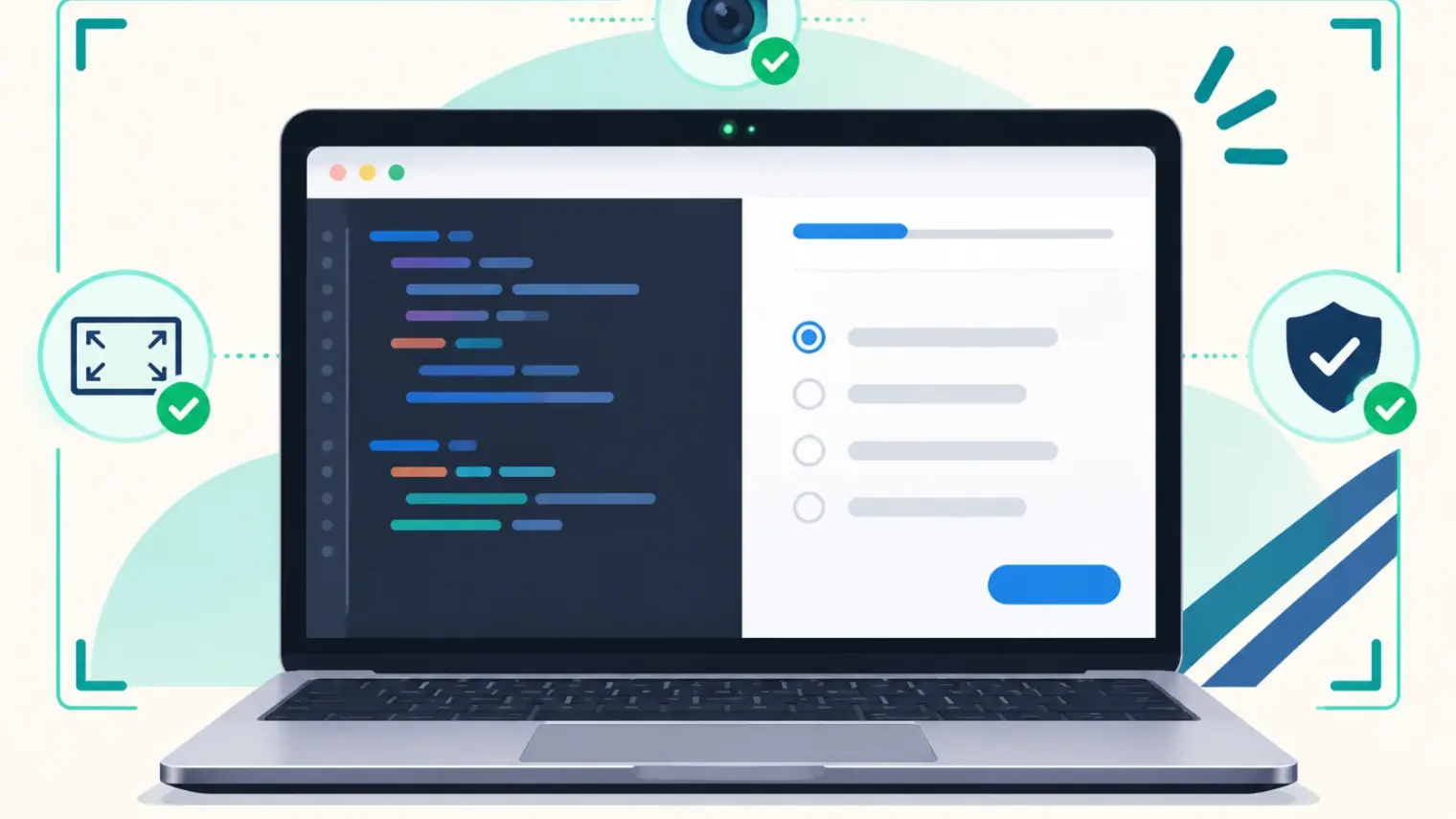
TL;DR: Unstop is the assessment layer behind a large share of Indian campus drives, corporate hackathons, and off-campus challenges — Flipkart, Amazon, Walmart, Reliance Industries, Accenture, Wipro, and EY all appear on its client roster. Unlike a single fixed exam client, Unstop lets the hiring team pick one of three proctoring tiers (Basic, Standard, or Advanced), so one round only checks full-screen and tab switches while the next requires Aadhaar-based face verification, continuous screen capture, and a 360-degree room scan. Before you click Start, two platform-specific traps catch candidates off guard: virtual-camera driver blocks on Unstop SmartHire (even on laptops without OBS) and accidental form submission from pressing the
Tabkey inside subjective text boxes.Source note: the proctoring tiers, verification steps, and coding-environment specifications below come from Unstop's live employer proctoring page (
unstop.com/employers/ai-proctoring-agent), Unstop's AI Proctoring guide (unstop.com/blog/unstop-ai-proctoring), and Unstop's coding test platform overview (unstop.com/blog/unstop-online-coding-test-platform), all read on 2026-11-17. Candidate-side failure modes come from documented reports onr/Adobeandr/Btechtards. Where a threshold is set per organizer rather than platform-wide, it is marked as such.
Most Indian placement guides treat Unstop as a hackathon listing board. Once a company shortlists you, though, Round 1 and Round 2 frequently run directly inside Unstop's own assessment engine — whether that is an MCQ screening quiz, a coding challenge in its 75-language browser IDE, or a timed case-study submission. Knowing which checks are active in your tier prevents both false flags and avoidable technical disqualifications.
The three Unstop proctoring tiers
Unstop's employer proctoring documentation breaks its monitoring into three packages: Basic, Standard, and Advanced. Because the company hosting the drive chooses the package when configuring the round, two different Unstop tests in the same week can enforce completely different rules.
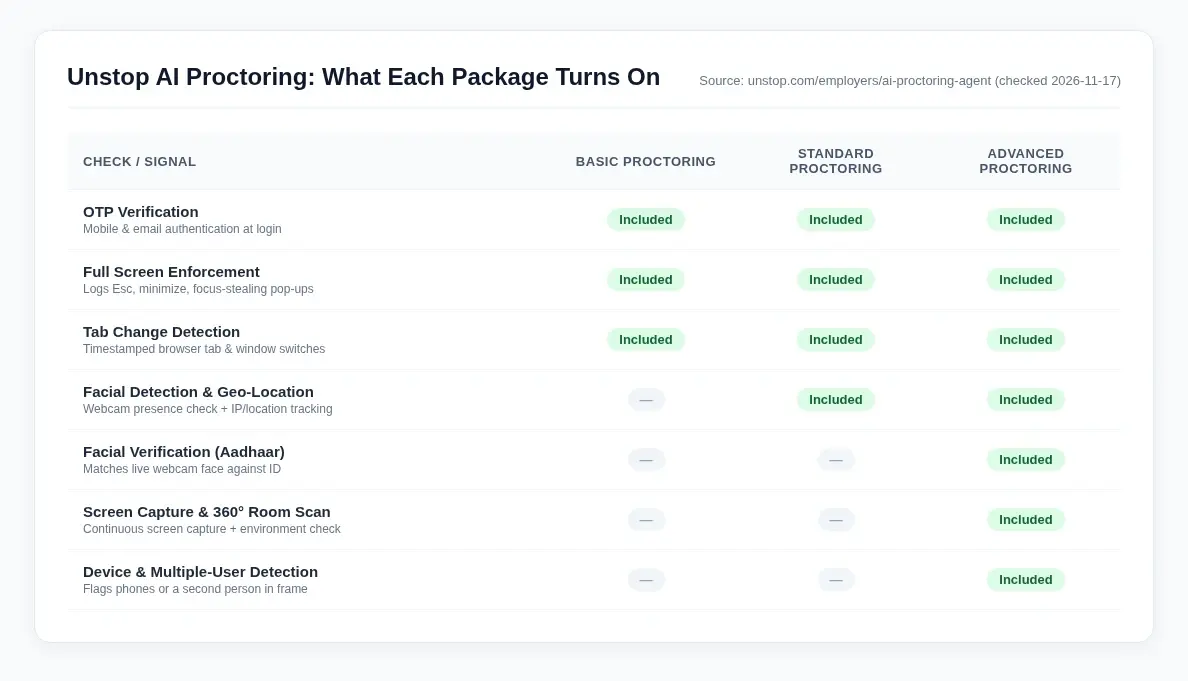
Here is what each package turns on, directly from Unstop's package matrix:
| Check | Basic Proctoring | Standard Proctoring | Advanced Proctoring |
|---|---|---|---|
| OTP verification (email & mobile) | Yes | Yes | Yes |
| Full-screen enforcement | Yes | Yes | Yes |
| Tab-change detection | Yes | Yes | Yes |
| Facial detection | — | Yes | Yes |
| Geo-location & IP tracking | — | Yes | Yes |
| Facial verification (Aadhaar-based) | — | — | Yes |
| Screen capture | — | — | Yes |
| 360° room detection | — | — | Yes |
| Device detection | — | — | Yes |
| Multiple-user detection | — | — | Yes |
Notice the line between Basic and Standard/Advanced. Even on the lightest tier, Unstop still enforces full-screen mode and logs tab changes. On Advanced, the session adds identity matching against Aadhaar, continuous screen capture, phone/device detection, and multi-person detection in the camera frame.
Full-screen mode, tab switches, and what flags actually do
Unstop's quiz guidelines state that assessments are hosted in full-screen mode and that anything disturbing full-screen mode is treated as a violation. In practice, four things break full-screen mode on a Windows or Mac laptop:
- Pressing
Escor clicking outside the assessment frame. - Switching browser tabs or using
Alt+Tab/Cmd+Tabto move to another application. - Incoming OS notifications, chat pop-ups (WhatsApp Desktop, Slack, Discord), or background software-update dialogs that steal window focus.
- A laptop going to sleep or dropping its network connection mid-test.
Unstop's own AI proctoring FAQ draws an important distinction on how flags are handled: the system records every full-screen exit, tab switch, and window change with a timestamp and rolls those events into a candidate risk report for the recruiter. On the platform's default flow, a behavioural flag is evidence for recruiter review, not an automatic rejection.
That default is not a guarantee on every drive. Individual corporate hackathons and campus organizers can configure strict violation limits on their round, where exceeding the allowed number of full-screen exits or tab switches auto-submits or terminates the paper. Treat every Unstop round as a single-window, focus-locked session from the first minute.
Two Unstop-specific traps candidates hit
Beyond standard webcam and tab-switch rules, two specific failure modes show up repeatedly in Indian candidate reports on Unstop.
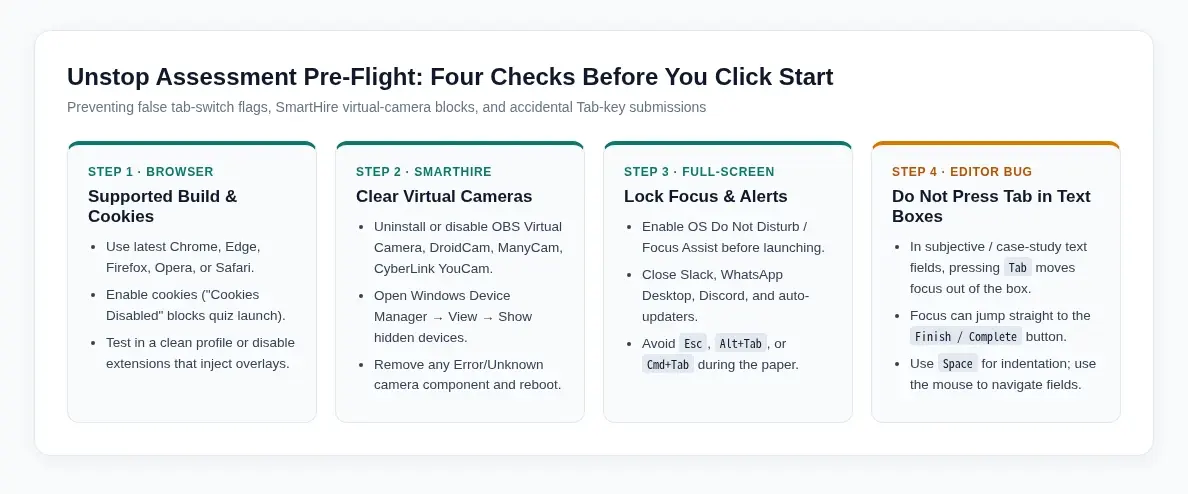
1. The SmartHire "virtual cameras not allowed" block
On Unstop SmartHire rounds, candidates regularly hit a virtual cameras not allowed error during pre-check — even when they have never installed OBS Studio. The reason is that proctoring apps scan Windows camera and imaging device lists for virtual drivers or broken camera components. Common culprits on Indian campus laptops (especially Acer, HP, and Dell machines) include:
- Pre-installed CyberLink YouCam or OEM camera-filter utilities.
- Leftover DroidCam, ManyCam, XSplit VCam, or Snap Camera drivers.
- Hidden devices in an Error or Unknown state inside Windows Device Manager.
To clear it before the test window opens:
- Press
Win + Xand open Device Manager. - Click View → Show hidden devices.
- Expand Cameras, Imaging devices, Software components, and Sound, video and game controllers.
- Right-click any virtual camera utility or any entry showing an Error/Unknown state, choose Uninstall device, check Delete the driver software for this device if prompted, and restart your laptop.
2. The Tab-key focus jump in subjective text boxes
In Unstop case-study and subjective rounds (such as hackathon Round 2 written submissions), pressing the Tab key inside an answer box does not always insert an indent. Standard HTML form navigation can shift keyboard focus out of the text box and onto the Finish / Complete button. If you are typing fast, the very next keystroke can trigger the Finish button and submit an empty or half-written round with no confirmation recovery.
The fix is simple: never press Tab inside an Unstop text field. Use spaces for formatting, and use your mouse or trackpad to move between questions.
What the coding and quiz environment looks like
Unstop's assessment engine mixes three formats depending on the employer's round:
- MCQ & aptitude quizzes: Timed sections where browser cookies must be enabled (disabled cookies stop the quiz at an
Error: Cookies Disabledscreen before launch). Unstop lists Chrome, Mozilla Firefox, Microsoft Edge, Opera, and Safari as supported browsers. - Coding rounds: An in-browser IDE supporting 75+ programming languages with instant compilation and automated scoring against test cases, plus debugging exercises.
- Case & hackathon submissions: Timed written or file-upload rounds hosted inside the same full-screen browser shell.
If your placement week includes assessments across multiple platforms, the setup rules differ slightly on each: the CoCubes system check, the HirePro assessment system check, AMCAT's exam-day instructions, and the HackerEarth Smart Browser guide break down those platforms separately, while the TCS iON NQT analysis covers TCS's cloud-proctoring flow.
Pre-flight checklist (15 minutes before launch)
- Open the assessment in an updated Chrome or Edge window with cookies enabled and non-essential extensions disabled (or use a clean browser profile).
- Enable Do Not Disturb / Focus Assist in Windows or macOS, and quit WhatsApp Desktop, Slack, Discord, and background updaters so no pop-up steals focus.
- If your round uses Unstop SmartHire, run the camera check early and clear any virtual or broken camera drivers in Device Manager.
- Keep your Aadhaar / photo ID beside you if the invite mentions facial verification or Advanced Proctoring, and sit in a well-lit room with no one else behind you.
- Keep your hands off
Esc,Alt+Tab,Cmd+Tab, and theTabkey inside subjective answer boxes.
Where an AI assistant fits
Placement drives on Unstop move fast from the initial screening quiz to live technical and HR rounds.
- During online assessments: AceRound AI's OA Copilot — online assessments on HackerRank, CodeSignal, Codility, and similar platforms — runs as a standalone desktop client with a click-through overlay that does not steal window focus from the browser. Quick mode handles aptitude and MCQ screens (up to 4 captures at once), while programming mode takes a full coding problem and constraints across up to 6 captures. Because compatibility depends on whether an assessment runs in a standard browser tab or a locked-down client, check the supported platforms list before your test. Every account starts with 30 free minutes, no card required.
- After you clear the Unstop round: Shortlisted candidates move into live technical, case, or HR interviews. You can rehearse company-specific rounds beforehand with mock interview mode or bring real-time structure to live calls with Interview Copilot.
- Finding and applying to drives: If you are juggling multiple off-campus applications alongside Unstop challenges, AceRound Auto Apply automates form-filling on official company career pages while pausing before final submission for your review, and how to survive back-to-back placement drives covers managing overlapping test windows.
FAQ
How does Unstop proctoring work during an online assessment?
Unstop splits its proctoring into three configurable tiers — Basic, Standard, and Advanced. Basic turns on OTP verification, full-screen enforcement, and tab-change detection. Standard adds facial detection and geo-location tracking. Advanced adds Aadhaar-based facial verification, screen capture, 360-degree room detection, device detection, and multiple-user detection. The employer or hackathon organizer chooses which tier applies to your round.
Does a single tab switch disqualify you on Unstop?
Unstop's own AI proctoring documentation states that behavioural flags are review signals with timestamps rather than automatic rejections by default. However, individual test organizers can configure strict full-screen violation limits on a specific round, and repeated tab switches or full-screen exits can trigger an automatic submission or disqualification depending on that drive's rules.
Why does Unstop SmartHire say virtual cameras are not allowed when I do not have OBS?
Proctoring clients check Windows camera and imaging driver lists, not just whether OBS is open. Pre-installed OEM utilities like CyberLink YouCam, leftover DroidCam or ManyCam drivers, or hidden camera components sitting in an Error or Unknown state in Windows Device Manager commonly trigger the virtual-camera block.
What happens if I press the Tab key in an Unstop subjective or case-study answer box?
Standard web-form navigation applies: pressing Tab inside a plain text area can move keyboard focus out of the editor and onto the Finish or Complete button, where the next keystroke can submit the round prematurely. Use the Space bar for indentation and the mouse to move between fields.
Which browsers work for Unstop online assessments?
Unstop states that its platform is best viewed in current versions of Chrome, Mozilla Firefox, Microsoft Edge, Opera, and Safari, with browser cookies enabled. If cookies are disabled, the assessment page stops at an Error: Cookies Disabled screen before the questions load.
What programming languages does Unstop's coding test support?
Unstop's online coding test documentation states that its in-browser IDE supports over 75 programming languages and evaluates submissions automatically alongside multiple-choice questions or debugging exercises.
Author · Alex Chen. Career consultant and former tech recruiter. Spent 5 years on the hiring side before switching to help candidates instead. Writes about real interview dynamics, not textbook advice.
Related Articles
HirePro Assessment: Tenant Alias, System Check, and Every Error
What a HirePro assessment checks before the paper: the tenant alias screen, the compatibility check, each error message, and the Secure Exam Browser route.

CoCubes System Check: Every Test It Runs, and What Each Error Means
assess.cocubes.com/check-system runs twelve checks before a CoCubes drive. What each one tests, what the four Error 3.x screens mean, and the Windows-only SAB step.

AMCAT Exam Instructions: Camera, Lockdown Browser, Resume Rules
What AMCAT checks before the paper: the webcam trial, the lockdown browser, the rules that lock a test for good, and the two-hour resume window.