CoCubes System Check: Every Test It Runs, and What Each Error Means
assess.cocubes.com/check-system runs twelve checks before a CoCubes drive. What each one tests, what the four Error 3.x screens mean, and the Windows-only SAB step.
TL;DR: Before a CoCubes drive, your placement cell sends a link: assess.cocubes.com/check-system. It opens in Chrome with no login and runs twelve checks — operating system, browser version, JavaScript, screen size, timer, HTTP GET, HTTP POST, webcam, audio, video recording, file upload and fullscreen — then prints either "You are good to go." or "Your computer is not ready for the assessment." A second thing also carries the name: the System Check Test, a short scored paper that sits in your assessment dashboard and is submitted from the Safe Assessment Browser. The four screens people actually get stuck on are Error 3.1 to 3.4: consent declined, camera or microphone not detected, audio muted, face not visible.
Source note: the check items, thresholds and messages below come from the live page at assess.cocubes.com/check-system and the scripts it loads, read on 2026-11-05, plus the Aon/CoCubes candidate guide distributed for Capgemini's off-campus drive and the candidate guides Indian colleges circulate with the same link. Anything that varies by employer is marked as such.
Two days before an off-campus drive, the group chat fills with the same message: "system check not opening, what to do." The answers people give each other are usually wrong, because nobody in that chat is looking at what the page actually runs.
Two different things are called the system check
This is the first thing to untangle, because it is why the advice you find online contradicts itself.
| The readiness page | The System Check Test | |
|---|---|---|
| What it is | A public browser page, no login | A real, scored paper inside the drive |
| Where | assess.cocubes.com/check-system | Your assessment dashboard, launched through the Safe Assessment Browser |
| How long | About two minutes | Five minutes in Aon's own guide, worth two marks |
| What it produces | Pass or fail on twelve hardware and browser checks | A submitted score you cannot redo after the final assessment |
| What it is for | Catching a dead webcam before the drive | Proving the whole chain — login, browser, camera, submission — works |
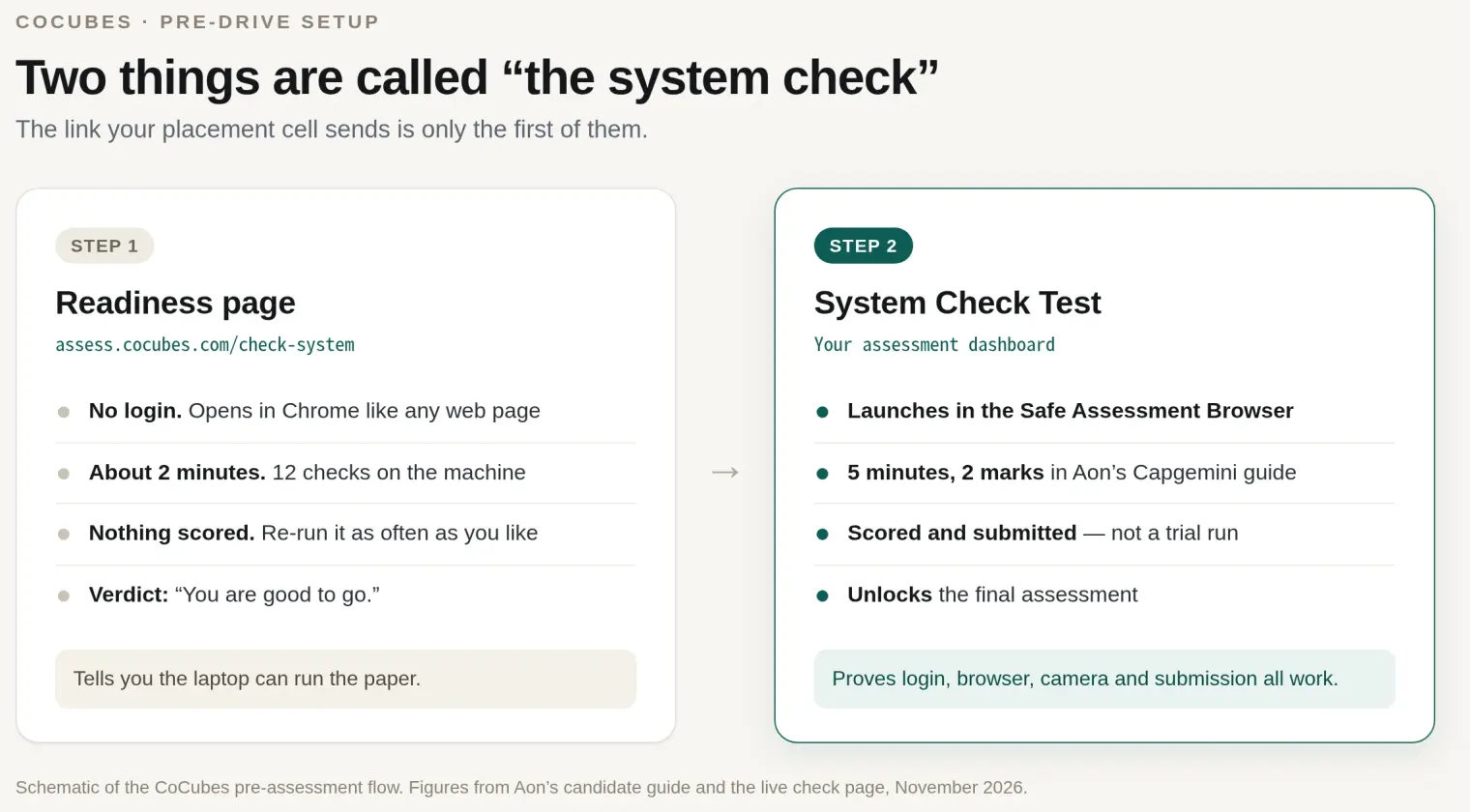
The five-minute, two-mark figure comes from the Aon/CoCubes candidate guide distributed for Capgemini's off-campus drive, which reproduces a submitted result page: "System-Check Test, Duration 5 minutes, Max Score 2 marks, Proceed to Next Step." Marks and duration are configured per drive, so read them as typical rather than fixed. What does not vary is the sequence: install the browser, sit the system check test, and only then unlock the final assessment.
If you are looking for what the proctoring stack records during the paper itself — webcam, tab switches, object detection — that is a different question with a different answer, and our CoCubes proctoring breakdown covers it. This page is about getting the machine through the door.
What the readiness page actually tests
Twelve rows, all on one screen. Each starts as "Checking . . ." and settles into a tick, an amber warning or a red cross.
| Check | What it reads | The usual reason it fails |
|---|---|---|
| Operating System | The OS string CoCubes reads from your request | An unusual or unsupported build |
| Browser Version | Browser and version, judged server-side | An old build; Internet Explorer below 9 is told it is "not suitable for coding" |
| JavaScript | Whether scripts run at all | JavaScript disabled, or an extension blocking it |
| Screen Size | Your actual display resolution | Anything under 592 × 360 pixels |
| Timer | A five-minute countdown inside the page | The script loading but never reaching CoCubes |
| Http GET | One request out to CoCubes | College firewall, proxy, content filter |
| Http POST | One request back, carrying your OS and IP | The same, plus captive-portal Wi-Fi |
| Webcam | A live preview of your camera | Permission denied, or another app holding the camera |
| Audio | Listens for sound above a noise floor | A silent room, or a muted microphone |
| Video Recording | Browser support for MediaRecorder | An outdated browser |
| File Upload | Browser support for the File API | An outdated browser |
| Fullscreen | Browser support for fullscreen | Blocked by the browser or an extension |
The thresholds are low. Screen size only needs 592 × 360 pixels, which every laptop clears and a narrow browser window may not; the three "browser support" rows pass on any Chrome built in the last several years. The rows that actually decide your evening are webcam and audio.
The webcam row has four states, not two
When the camera works, the panel opens a live preview and the text reads: "OK, Please check if you can see your face in right panel." That preview is the only proof the check wants — no photo capture, no face matching, no lighting score.
The other three states tell you different things:
- "Attach webcam" — no camera device was found at all. Check the shutter, the function-key toggle, and whether the laptop has a camera at all.
- "Check webcam" — a camera exists but the page could not get a stream. Almost always a permission denial, or another application (Zoom, Teams, a browser tab left open) holding the device.
- "Not supported" — the browser cannot do camera capture. Update Chrome and start again.
The audio row only passes if you make a sound
This is the single most common false alarm. The row first confirms only that the browser can handle audio at all; the "Check Audio" button it offers is the real test, and it passes only when the page hears something above its noise floor.
So click the button and count to five out loud. A quiet room, a ceiling fan and a candidate sitting still will leave the row on "Check Audio" indefinitely, which is what most people describe as "the audio check is not working." If speaking does not turn it green, the microphone is muted in the operating system's sound settings, or Chrome never received microphone permission for assess.cocubes.com.
"You are good to go" is not just a message on your screen
The green tick is not decided locally. The page posts the result of each check back to CoCubes — one bit per item — before it tells you the machine is ready. That is how a lab machine can be logged as checked for a drive, and it is why a failed check is not something you can wave away by closing the tab: the failure is on record too.
The practical consequence is small but real. Run the check on the laptop and the network you will actually sit the paper on. A green tick earned on your friend's MacBook, or on the hostel Wi-Fi an hour before the paper, tells you nothing about the machine in the exam hall.
The four screens people actually get stuck on
The CoCubes candidate guide numbers them, and the numbers are worth knowing because a coordinator will ask which one you saw.
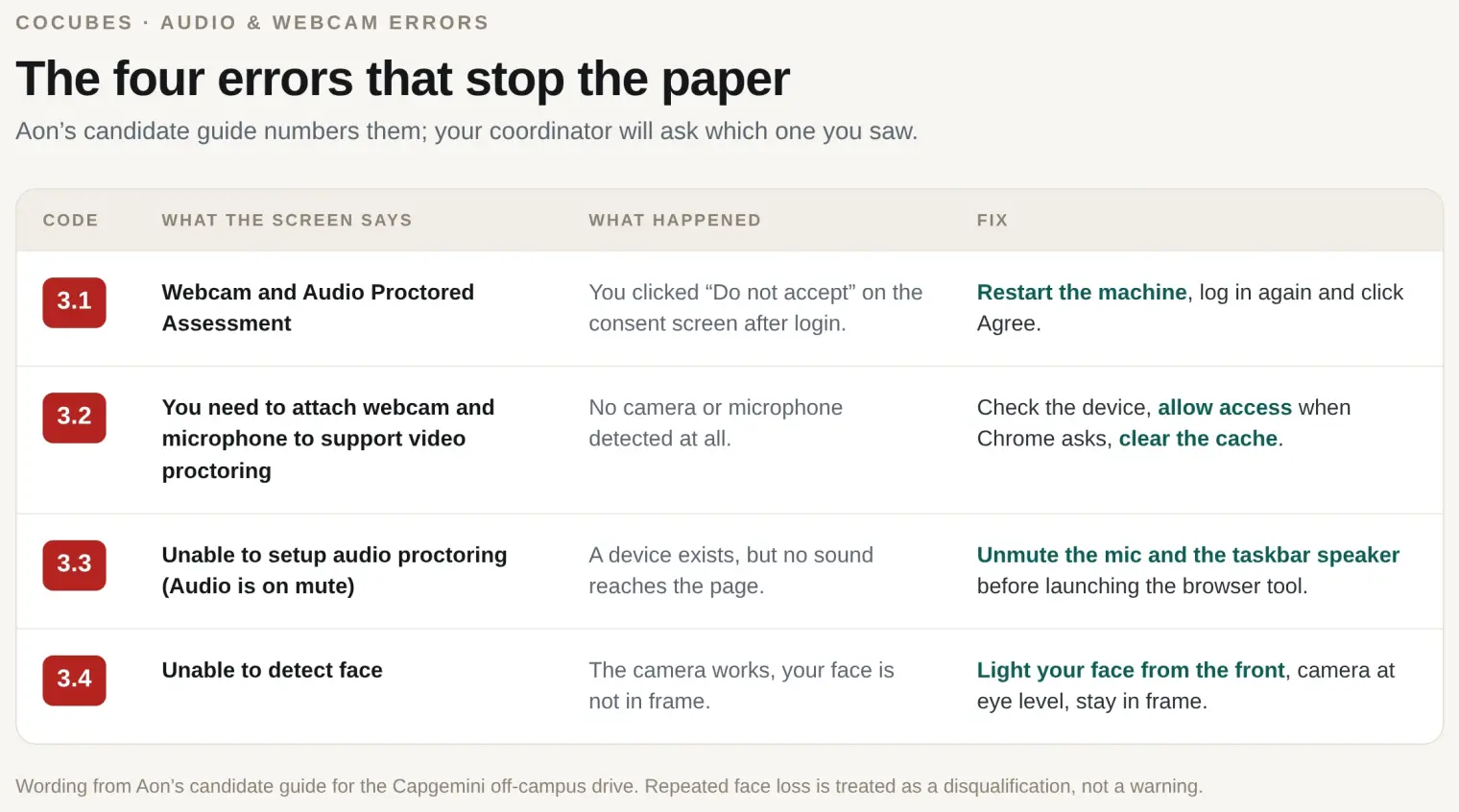
Error 3.1 — "Webcam and Audio Proctored Assessment." You clicked "Do not accept" on the consent screen that appears immediately after login. There is no way back from that screen inside the session: shut the system down, start it again, log in and click Agree.
Error 3.2 — "You need to attach webcam and microphone to support video proctoring." The system found no camera or no microphone. Confirm the device exists and is switched on, allow access when the browser asks, clear the cache, and retry in the same browser.
Error 3.3 — "Unable to setup audio proctoring (Audio is on mute)." A device exists but no audio reaches the page. Unmute the microphone and the taskbar speaker icon before launching the Safe Assessment Browser, grant camera and microphone permission, and restart if the error persists.
Error 3.4 — "Unable to detect face." The camera works, but your face is not visible in it. Aon's wording is blunt: do not hide your face or move away from the camera at any point, and repeated occurrences lead to disqualification. Light your face from the front rather than from behind, put the laptop at eye level, and do not sit at the edge of the frame.
The login and network errors share the same numbering scheme — 1.1 for a wrong or expired access link, 1.2 for a login mismatch on roll number, date of birth or passkey, 2.1 to 2.6 for the connection dropping mid-paper. Those are worth skimming once: if the connection dies during a module, the guide's instruction is to leave the browser open, let it reconnect, and let the answers submit themselves rather than reloading the page.
The Safe Assessment Browser step
Some drives run the paper in a Chrome tab. The stricter ones — Capgemini's off-campus drive among them — run it inside the Safe Assessment Browser, a separate locked browser that Aon distributes as an installer.
Four things about it that cost people the test:
- It is a Windows program. The installer is an
.exe, with separate builds for Windows 10 and for Windows 7/8. Aon's guide is explicit that the assessment will not run on iPhone, iPad or MacBook. - Antivirus eats the download. Windows Defender and third-party antivirus quarantine the installer silently, and SmartScreen blocks it on first run. Pause real-time protection for the download, then restore it.
- "Windows protected your PC" is expected. Click More Info, then Run Anyway. If the machine asks for an administrator password, you need the laptop's owner present — college lab machines are usually locked down.
- "Webcam Not Found" after launch may be wrong. Aon's own guide says that if your webcam is working, ignore this error and continue.
Install it once, before the System Check Test, and it is done for the final assessment as well. Do not leave the install to the morning of the paper: the .NET Framework prompt alone can take five to ten minutes on a cold machine.
Constraints that are easy to miss
- Use Chrome, and clear it. Latest version, pop-up blockers off, cache and browsing history cleared before you download the browser tool. Most of the errors above are cache and permission problems wearing a costume.
- Disable antivirus and screen savers for the duration. Both the lock-down browser and the proctoring stack treat background processes as environment risk.
- Bandwidth: 2 to 4 Mbps, depending on the drive. Aon's guide for Capgemini asks for 4 Mbps; several college guides ask for 1 to 2. A hostel corridor hotspot is the usual failure — tether to a phone only as a last resort, and never switch networks mid-module.
- Set the system clock to IST. It appears in Aon's own requirements list, and a clock that is hours off is a classic reason a timer or a token check misbehaves.
- Keep the machine identical. Same laptop, same browser, same seat. Reinstalling Windows or borrowing a different machine between the check and the paper resets the work.
A twenty-minute plan for the evening before
- Run the readiness page on the laptop you will use. Fix anything amber or red, then run it again.
- Install the Safe Assessment Browser if your drive uses it, and open it once to confirm it launches.
- Sit the System Check Test in your dashboard. It is short and it is scored, so treat the first attempt as the real one.
- Keep the laptop charged, close every background app, and put the phone face down in another room.
- Run the readiness page once more on the morning of the paper. It takes two minutes and it is the cheapest insurance in the whole process.
After the machine is cleared, the paper starts
The check answers one question: can this laptop run the assessment. It says nothing about the sections behind it — for most drives that is an aptitude module, computer fundamentals, a psychometric battery, sometimes a domain paper and a coding round, in whatever combination the employer configured. And it says nothing about the interview that follows if you clear the cutoff.
That part is a different problem, and it is the one AceRound AI is built for. OA Copilot runs as a desktop client on your own laptop, reads the question off your screen and streams the approach and the answer into an overlay beside it — quick mode for the multiple-choice aptitude and psychometric sections, programming mode for the coding round. Because it reads the screen rather than integrating with the test site, it does not care whether the drive runs on CoCubes, on HackerRank or on an in-house portal. If the drive pairs the assessment with an HR or technical round, mock interview mode lets you rehearse the answers out loud first, and question prediction gives you the questions that employer actually asks. Thirty free minutes, no card required, and the platform list shows what it runs alongside.
FAQ
What is the CoCubes system check link?
https://assess.cocubes.com/check-system. It opens in a browser with no login, runs about a dozen checks on the machine in front of you, and finishes with either "You are good to go." or "Your computer is not ready for the assessment." Your college's placement PDF usually prints the same link.
Is the CoCubes system check compulsory?
Treat it as compulsory. The instructions sent with almost every CoCubes drive ask you to get a "good to go" before the test date, and the page posts the result of each check back to CoCubes rather than only showing it to you. It takes about two minutes, and running it late is how people discover a dead webcam ten minutes before the paper.
Why does the CoCubes audio check keep failing?
Two reasons. The page only passes audio when it detects actual sound above its noise floor, so a silent room keeps it on "Check Audio" indefinitely; say something out loud while the check is running. If that still fails, the microphone is muted at the operating-system level, another app is holding it, or the browser never got microphone permission for assess.cocubes.com.
Can I take a CoCubes assessment on a Mac?
Usually not. The Safe Assessment Browser that Aon ships for laptop and desktop candidates is a Windows .exe, and Aon's own candidate guide states the assessment will not run on iPhone, iPad or MacBook. Some colleges' older guides still list macOS 10.13+ and Ubuntu because a minority of employers run the paper in a plain Chrome tab instead. The only reliable answer is in your own invitation, so check which route your drive uses before you borrow a laptop.
What does "You need to attach webcam and microphone to support video proctoring" mean?
The system could not detect a camera or a microphone at all. Check that the device is plugged in or switched on, allow camera and microphone access when Chrome asks, clear the browser cache, and try again in the same browser. If the laptop has a camera shutter or a function-key camera toggle, open it before you retry.
Does passing the system check mean my slot is confirmed?
No. The readiness page only reports whether the machine can run the paper: operating system, browser, camera, microphone and network. Your registration, hall ticket, access token and the actual assessment link come from the employer or your placement cell, and the scored System Check Test inside the drive is separate from the readiness page.
How early should I run the CoCubes system check?
48 hours before, on the same laptop, the same browser and the same network you will sit the paper on. Run it again on the morning of the test, because a Windows update, an antivirus change or a different Wi-Fi network can turn a green tick into a red cross overnight.
Author · Alex Chen. Career consultant and former tech recruiter. Spent 5 years on the hiring side before switching to help candidates instead. Writes about real interview dynamics, not textbook advice.
Related Articles
Unstop Assessment Proctoring: Full-Screen, Tab Switches, and SmartHire
How Unstop online assessments proctor campus and off-campus drives: Basic, Standard, and Advanced tiers, full-screen violations, SmartHire virtual camera errors, and the Tab-key focus bug.
HirePro Assessment: Tenant Alias, System Check, and Every Error
What a HirePro assessment checks before the paper: the tenant alias screen, the compatibility check, each error message, and the Secure Exam Browser route.
AMCAT Exam Instructions: Camera, Lockdown Browser, Resume Rules
What AMCAT checks before the paper: the webcam trial, the lockdown browser, the rules that lock a test for good, and the two-hour resume window.