Can HackerRank Detect Remote Access? AnyDesk & UltraViewer (2026)
Not in a plain HackerRank test. Proctor Mode flags remote-desktop apps; Desktop App Mode blocks remote access. AnyDesk, HackerEarth and Mettl explained.
TL;DR: Can HackerRank detect remote access? Not in a plain browser test: a web page can't list the programs running on your laptop, and HackerRank's standard and Secure Mode documentation has no remote-access check. That stops being true in the two stricter modes. Proctor Mode asks you to share your entire screen, takes a screenshot every 15 seconds and runs a model whose documented targets include "remote desktop applications". Desktop App Mode "prevents candidates from sharing remote access to their systems" and won't run inside a virtual machine. HackerEarth's Smart Browser and Mettl Secure Browser both block remote-control tools before the first question. If AnyDesk or UltraViewer is on your laptop for an ordinary reason, quit it properly before you launch.
Two kinds of people search this question in placement season.
The first has AnyDesk on the laptop for a boring reason. Your father's office IT team uses it, you once helped a cousin fix a printer through it, or the college lab put UltraViewer on every machine. Now there's an Infosys or Goldman Sachs HackerRank link in your inbox and you want to know whether a background app will get you flagged.
The second has seen the message in a batch WhatsApp group or a Telegram channel: "OA support available, share AnyDesk ID, pay after." The question there is whether the platform can see the helper.
The platform documentation answers both. Everything below comes from HackerRank's, HackerEarth's and Mercer Mettl's own help pages, read on 3 November 2026.
What each platform does with an active remote session
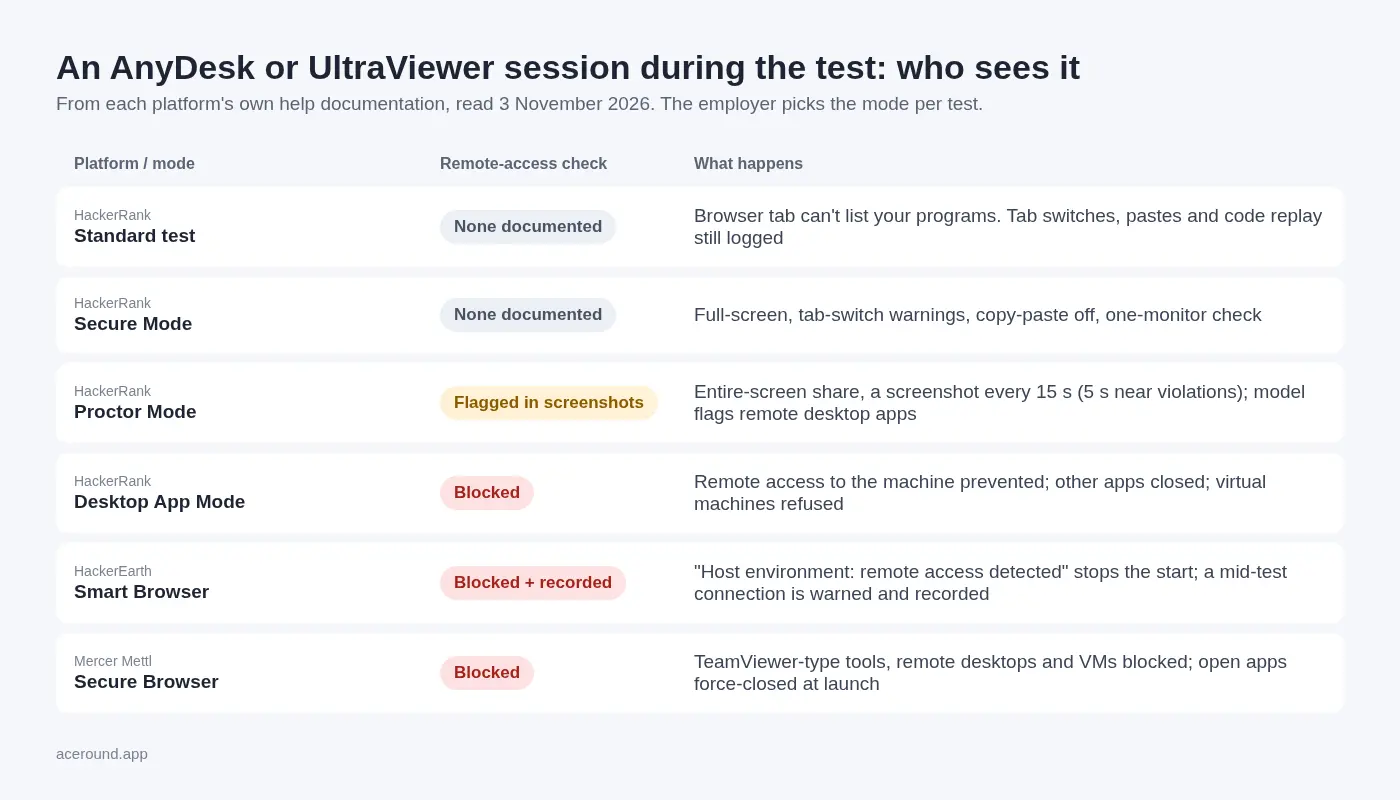
| Platform and mode | Checks for remote-access tools? | What happens |
|---|---|---|
| HackerRank — standard test | No documented check | Test runs. Tab switches, paste events and code replay are logged |
| HackerRank — Secure Mode | No documented check | Full-screen, tab-switch warnings, copy-paste disabled, single-monitor check |
| HackerRank — Proctor Mode | Yes, from screenshots | Entire-screen share, screenshots every 15 s (every 5 s around violations), model flags remote desktop apps |
| HackerRank — Desktop App Mode | Yes, blocked | Remote access to the machine prevented, other apps closed, VMs refused |
| HackerEarth — Smart Browser | Yes, before and during | "Host environment: remote access detected" blocks the start; mid-test connection raises a recorded warning |
| Mercer Mettl — Secure Browser | Yes, blocked | TeamViewer-type screen sharing, remote desktops and VMs blocked; other apps force-closed at launch |
The pattern: anything that runs in an ordinary browser tab can't see AnyDesk. Anything that runs as its own desktop client, or makes you share your whole screen, can. Most campus OAs in India run on one of these three platforms. The employer picks the mode per test, so the Infosys link and the Goldman link may sit at different rows of this table.
HackerRank in a browser: standard and Secure Mode
A browser tab is sandboxed. It knows what happens inside its own page: keystrokes in the editor, when you paste, when the tab loses focus. It can't enumerate Windows processes, so it can't ask "is AnyDesk running?"
HackerRank's Secure Mode documentation lists exactly four controls: full-screen enforcement, tab-switch alerts, external copy-paste blocked, and a multiple-monitor check that keeps running for the whole test. Remote access isn't on that list. The standard test has fewer controls still.
That doesn't make a remote session invisible, for three reasons.
- The code replay. HackerRank records how the solution was typed, edit by edit. A remote helper's typing goes into the same replay. Bursts of fully formed code, long idle gaps followed by complete functions, and a rhythm that doesn't match your other answers all show up there, and a reviewer can play it back.
- The webcam, if it's on. Older HackerRank proctoring takes periodic webcam snapshots. A candidate staring at a screen while the cursor solves the problem by itself is not a subtle picture.
- The round after. A HackerRank OA is usually followed by a technical interview. In campus drives the technical interviewer often asks you to walk through the OA solution or change it for a new case. A helper on another machine can't sit that round for you.
HackerRank Proctor Mode: the screenshots are looking for it
Proctor Mode is part of HackerRank's AI Add-on. Before the test it asks for webcam access, checks that only one monitor is connected, and asks you to share your entire screen.
Per HackerRank's Proctor Mode documentation, the platform then captures a screenshot every 15 seconds, and every 5 seconds once it sees suspicious activity like a window switch or leaving full-screen. A model classifies each screenshot as suspicious or not. Its documented targets include tutorial and answer-sharing sites, external AI assistants, invisible overlay apps, and, in HackerRank's own words, "collaboration tools, such as video conferencing, messaging, or remote desktop applications."
So in Proctor Mode, a visible AnyDesk or UltraViewer window, connection banner or tray popup ends up in a screenshot that is classified, highlighted on the Session Replay timeline and shown to the recruiter with an explanation. Webcam images are captured every five seconds alongside it, and the editor watches for type-and-delete patterns that look like someone relaying the question.
HackerRank Desktop App Mode: remote access is blocked
Desktop App Mode is the strictest setting. The test runs in a native Windows or macOS app you download from the invite. The first line of HackerRank's Desktop App Mode documentation is the answer to this whole page: it "prevents candidates from sharing remote access to their systems."
The same mode blocks screen sharing and screenshots, closes other applications (the documentation names video conferencing, messaging and LLM apps, and tools such as Cluely), enforces full-screen with no way out, refuses to run on a virtual machine, and requires a single, non-mirrored display. It includes every Proctor Mode feature on top.
If your invite makes you install something before the first question, assume a remote session won't survive it. The screen-recording breakdown covers what each of the four HackerRank modes records.
HackerEarth Smart Browser: a gate before the first question
HackerEarth is common for Indian hiring challenges and off-campus drives. Its Smart Browser is the one platform here that tells you, in plain words, that it found a remote tool.
HackerEarth's Smart Browser troubleshooting page lists two messages:
- "Host environment: remote access detected" before the test. The fix it gives: disconnect remote desktop or remote-control tools, turn off Windows Remote Desktop in settings, disconnect active sessions, retry.
- "Inbound remote access warning" during the test. HackerEarth says this warning doesn't end the test by itself, but "remote access violates policy and is recorded."
The same client checks for virtual machines, blocks screen sharing and screenshots, and gives you about 10 seconds to unplug an extra monitor before it may quit. In a plain HackerEarth browser test there's no equivalent check documented. The HackerEarth detection guide has the camera and audio side.
Mercer Mettl Secure Browser: closes everything at launch
Mettl runs a large share of Indian aptitude and campus assessments, and the Mettl Secure Browser (MSB) is the strictest of the three about what else may run.
Mercer Mettl's security document states that "software for screen sharing (e.g., TeamViewer), emails, browsers, virtual machines and remote desktops, etc. are blocked," and that external ports are disabled to stop screen duplication or extension. Mettl's candidate help adds that MSB asks permission to force-close every open browser window and application when it launches, and if it can't close something it asks you to end it from Task Manager. More on the rest of Mettl's stack in the Mettl proctoring guide.
AnyDesk is installed for a normal reason: do this before test day
None of these platforms treats having AnyDesk installed as cheating. The trouble is that AnyDesk and UltraViewer normally run as background services that start with Windows, so the program counts as active even when no one is connected. That's what trips Smart Browser's host check and MSB's force-close.
Before the test, on the same laptop:
- Quit from the system tray, then stop the service. Right-click the AnyDesk or UltraViewer icon near the clock and exit. Then open Task Manager → Services (or
services.msc) and stop the AnyDesk or UltraViewer service. Uninstall it if you don't need it this week; it takes a minute to reinstall later. - Turn off Windows Remote Desktop. Settings → System → Remote Desktop → off. This is the exact step HackerEarth's help page names.
- Close the other remote tools you forgot about. Chrome Remote Desktop's host, TeamViewer, Quick Assist, the screen-mirroring app for your phone, and any "cast to TV" connection.
- Run the platform's system check on test day, not the night before. HackerRank's sample test, HackerEarth's Smart Browser pre-check and Mettl's compatibility check all run on your actual machine. If something still shows as active, you find out with time to fix it.
- Use your own laptop, not a lab machine. College lab PCs often have remote-management software that students can't stop. If the drive is at home, a lab machine is the most likely place for a false block.
If you get blocked anyway, take a screenshot of the error and email the recruiter or placement cell straight away. A host-check block happens before the test starts. It's a setup problem, not an integrity flag, and recruiters reschedule these.
"OA support via AnyDesk": what you are actually handing over
The offer in the Telegram channel usually reads the same way: share your AnyDesk or UltraViewer ID, someone "attends" the HackerRank or Mettl test from their machine, pay by UPI before or after. Set the ethics aside for a minute and look at the mechanics, because they're bad for you in three separate ways.
- It fails on the modes that matter. The stricter the test, the more likely it is Proctor Mode, Desktop App Mode, Smart Browser or MSB, which are exactly the ones in the table above that flag or block a remote session. On the browser modes, the code replay and the follow-up interview do the catching instead.
- You give a stranger full control of the laptop. Remote control means the other person can open anything you're logged into: Gmail, the college ERP, LinkedIn, and the UPI apps and net banking saved in your browser. In February 2019 the RBI issued an alert (Alert 1/2019) on fraud carried out through remote screen-access apps, and NPCI followed with a public advisory telling users not to give handset access to strangers through such apps. AnyDesk was the app named in coverage of both.
- The flag outlives the test. A flagged integrity report goes to the recruiter. With mass recruiters that can mean disqualification from the drive, and a placement cell that hears about it can bar you from the next ones.
What actually helps
What gets people through a HackerRank OA and the interview after it is being able to solve problems at the test's pace on their own machine, and then explain the solution out loud.
AceRound AI runs on your own laptop, so nobody else ever gets into it. Its OA Copilot, built for online assessments on HackerRank, CodeSignal and Codility, reads the problem off your own screen and walks you through the approach and the edge cases, which also makes it a fast way to rehearse timed problems before the drive and calibrate your pace. The mock interview mode has you say your approach out loud so the technical round isn't the first time you've explained it. Interview Copilot covers that live round itself. You get 30 free minutes with no card, and the platform list shows which test and video platforms it works with. For the Infosys version of this test specifically, the Infosys HackerRank guide covers the SP/DSE question pattern.
FAQ
Can HackerRank detect remote access?
It depends on the mode the employer enabled. A standard or Secure Mode HackerRank test runs in a browser tab and has no documented check for remote-desktop software. Proctor Mode asks you to share your entire screen, captures screenshots every 15 seconds and runs a model that flags remote desktop applications among other unauthorized tools. Desktop App Mode prevents candidates from sharing remote access to their systems and refuses to run on a virtual machine.
Does HackerRank detect AnyDesk or UltraViewer?
HackerRank's documentation does not name AnyDesk or UltraViewer. It names the category: Proctor Mode's screenshot analysis flags remote desktop applications, and Desktop App Mode blocks remote access to the machine. In a plain browser test there is no documented process check, but the session still logs tab switches, paste events and a code replay, and a webcam may be on.
Will HackerEarth flag AnyDesk if it is just installed?
Smart Browser checks the host environment before the test and shows "Host environment: remote access detected" when remote desktop or remote-control tools are active. HackerEarth's fix is to disconnect those tools and turn off Windows Remote Desktop, then retry. Quitting AnyDesk or UltraViewer fully, including their background service, before launch is the safe way to avoid the block.
Does Mercer Mettl block TeamViewer and AnyDesk?
Mettl Secure Browser does. Mercer Mettl's security documentation says screen-sharing software such as TeamViewer, remote desktops and virtual machines are blocked, and the browser force-closes other running applications at launch, asking you to end any it cannot close from Task Manager.
Can someone take my HackerRank test through AnyDesk?
On the stricter modes the session is blocked or flagged, and on every mode the test is followed by interviews where you have to explain the code. Handing a stranger remote control of your laptop also gives them your saved logins and payment apps; India's RBI and NPCI both warned in February 2019 about fraud carried out through remote screen access apps such as AnyDesk.
How do I know which HackerRank mode my test uses?
Look at the onboarding. A download prompt means Desktop App Mode. A webcam request plus a request to share your entire screen means Proctor Mode. Full-screen launch with tab-switch warnings and a single-monitor check but no camera means Secure Mode. No prompts at all means a standard test.
Author · Alex Chen. Career consultant and former tech recruiter. Spent 5 years on the hiring side before switching to help candidates instead. Writes about real interview dynamics, not textbook advice.
Related Articles

Flipkart, Amazon India, Jio and Airtel Fresher Interview Process: Tests, DSA Rounds and What Sources Disagree On
Flipkart, Amazon India, Jio and Airtel fresher hiring as candidates describe it: online test formats, DSA questions, Amazon's work-style assessment, and where the evidence is thin.
Does HackerRank Record Your Screen? What Each Mode Captures (2026)
No for a standard test — HackerRank logs paste events and tab switches, not your screen. Proctor Mode adds system screenshots and webcam checks, Desktop App Mode records the whole session. Here is which one your invite uses.
Virtusa, GlobalLogic and Mastek Fresher Interview Process in India: Coder Tests, GDs and Funnel Numbers
Virtusa, GlobalLogic and Mastek campus drives as candidates describe them: test formats, cut-offs, group discussions, technical questions, and where the sources disagree.