Is Your AI Interview Assistant Safe on Screen Share?
Will screen sharing expose your AI interview assistant? The real answer: window vs. full-desktop capture, overlay exclusion, and why nothing is 100% safe.
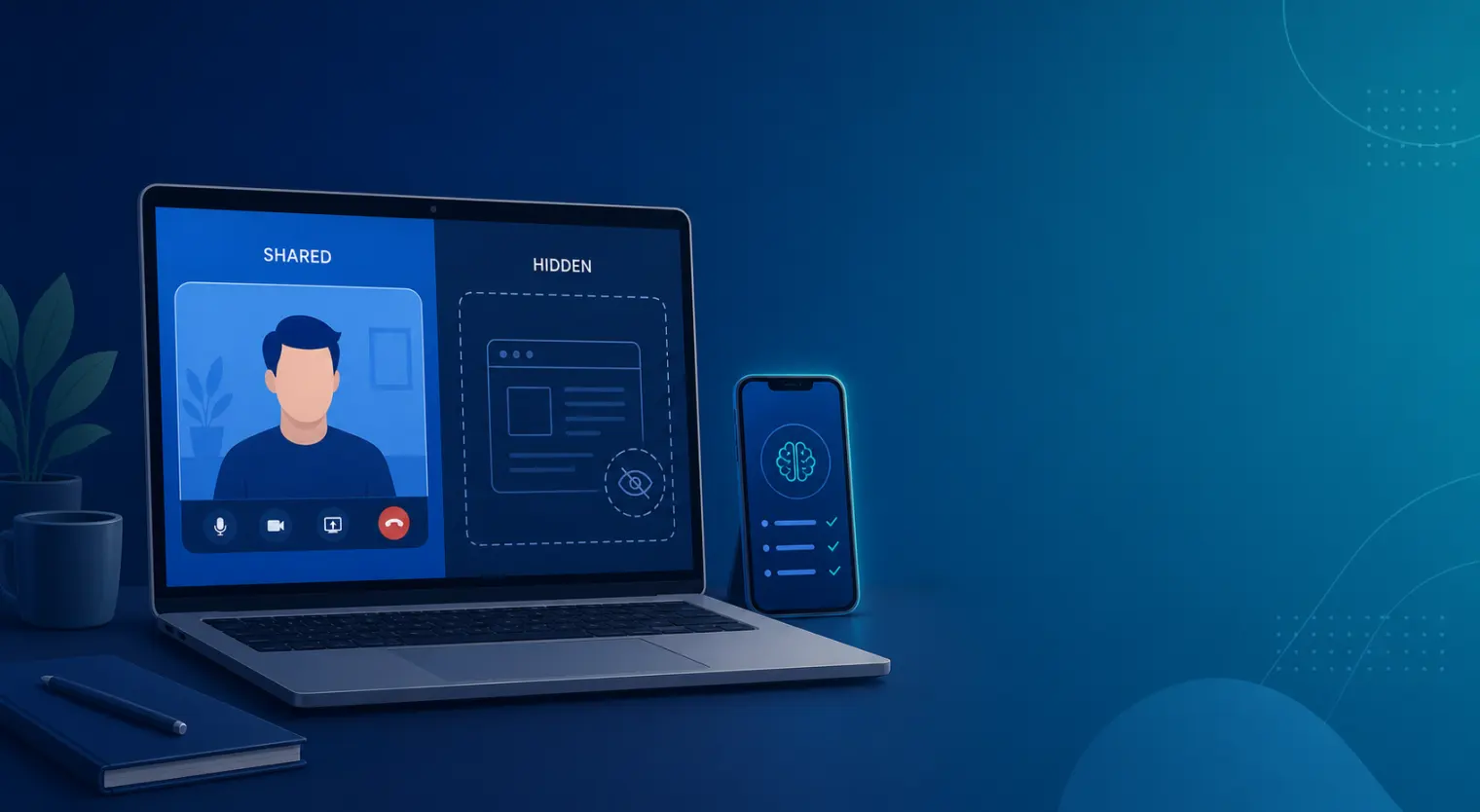
TL;DR: Whether an AI interview assistant shows up on screen share depends on how it renders and what you share. Desktop overlays using OS-level "exclude from capture" stay invisible even on a full-screen share; browser extensions and non-excluded overlays are visible the moment you share that window or tab. Sharing a single app instead of your whole desktop hides everything else by default — a fact confirmed in Zoom's, Google Meet's, and Microsoft Teams' own documentation. No setup, including dual-device (phone) setups, is 100% undetectable once you factor in proctoring software and behavioral cues.
A candidate on Blind described it plainly: the interviewer asked for a screen share, saw a tab that shouldn't have been open, and ended the interview on the spot. It's a recurring story across interview forums — not because AI interview tools are rare, but because most candidates never actually learn how screen sharing works before they're asked to turn it on.
If you're using, or considering, an AI interview assistant, the question "is my AI interview assistant screen share safe" deserves a technical answer, not a marketing one. Here's what actually determines whether something shows up when you share your screen.
The Real Question: What Can Actually Show Up When You Share Your Screen?
Screen sharing isn't one thing — it's a choice you make every time, and that choice determines exposure. Zoom, Google Meet, and Microsoft Teams all give you the same basic options: share your entire screen/desktop, share a single application window, or (on Meet) share one browser tab.
- Zoom's own screen-sharing documentation confirms the desktop-vs-window-vs-application choice is made by the sharer, every time, with no passive or automatic sharing mode.
- Google Meet's presenting help page confirms the same three-way choice, and that tab-sharing isolates content to that tab only.
- Microsoft Teams' sharing documentation confirms window sharing only transmits the selected window, not the rest of your desktop.
That's the baseline fact most "is it safe" articles skip: what an interviewer can see is a direct function of what you selected in the share dialog, not some hidden platform capability. Full-desktop sharing exposes your taskbar, notifications, and anything visible on your display. Window or tab sharing exposes only that one surface.
Three Ways an AI Assistant Could Actually Be Exposed
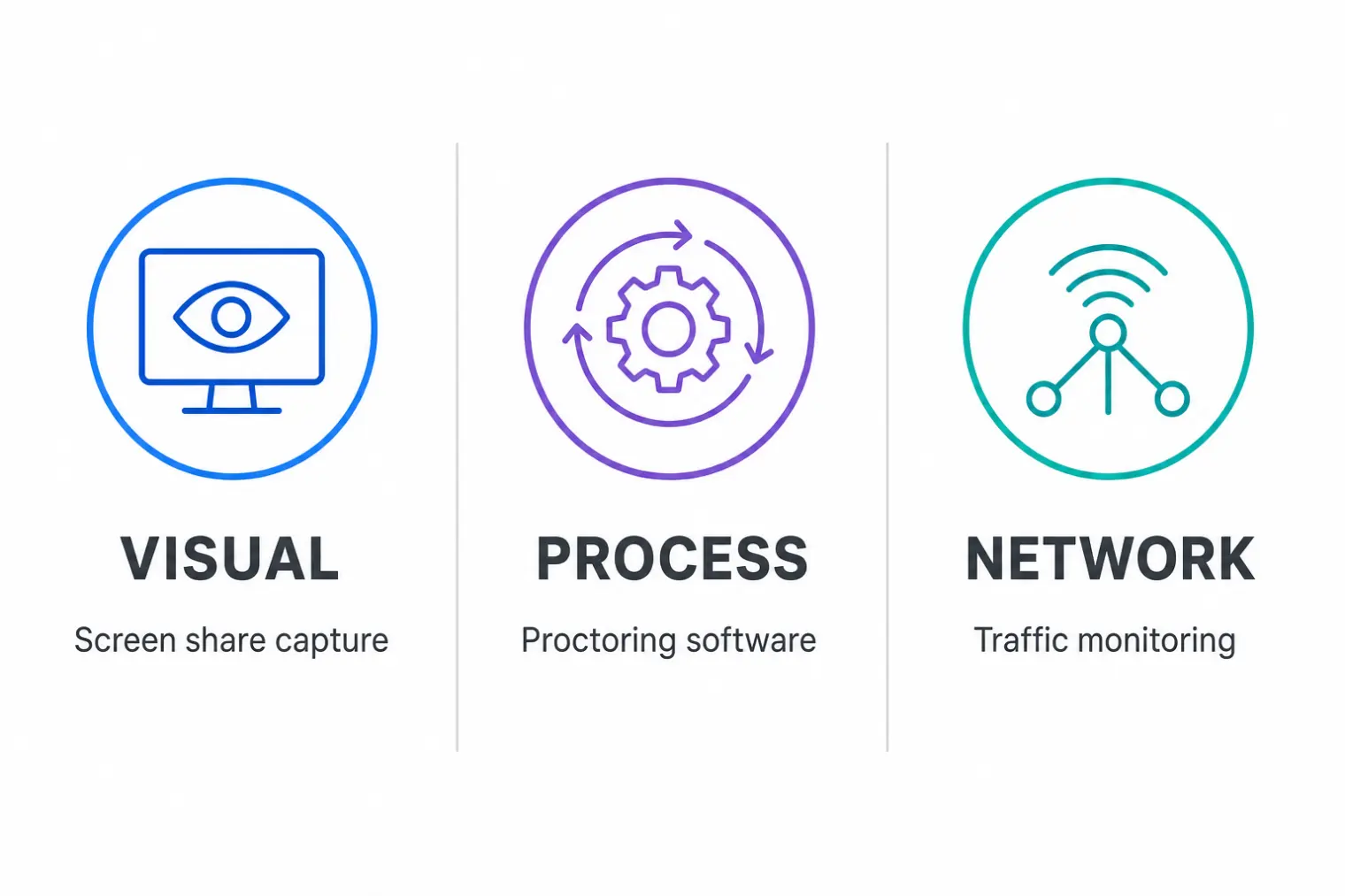
"Detection" isn't a single mechanism. There are three distinct vectors, and an honest answer has to address all three instead of just the one everyone assumes.
- Visual (screen share). This is what most people mean by "will they see it" — is the tool visible in the video feed you're transmitting. This is the vector window-vs-full-desktop sharing directly controls.
- Process-level (proctoring software). Coding-assessment platforms like HackerRank or Codility can run a local agent that scans running processes or detects multiple connected displays — something a plain Zoom or Teams call has no mechanism to do at all. What HackerRank's detection actually flags is a genuinely different threat model from screen sharing on a video call.
- Network traffic. Cloud-based AI tools generate continuous outbound network requests. In security-conscious corporate environments — think regulated finance or defense contractors — that traffic pattern can be visible to IT monitoring regardless of what's on your screen.
Most "AI interview assistant screen share safe" content online only covers vector one. Vectors two and three are why no vendor can honestly claim full undetectability across every interview format.
Why Some Overlay Apps Can Disappear From Screen Share — and Extensions Can't
Here's the actual mechanism, not the marketing version of it.
Native desktop apps can call an operating-system API that marks a window as excluded from screen capture — the same mechanism used to keep DRM-protected video from appearing in screen recordings. To the person looking at your screen directly, the window is there. To anything capturing your screen (Zoom, Teams, Meet, OBS, a screenshot tool), that window is simply absent from the feed.
A browser extension doesn't have access to that OS-level API. It runs inside the browser's own sandbox, which means if you share the browser window or the specific tab it's active in, the extension's UI is captured like anything else on the page. This is the single biggest structural difference between "AI interview assistant Chrome extension" tools and native desktop apps when screen-share exposure is the concern — worth checking directly if you're evaluating AI interview assistants built as browser extensions versus native clients.
Two important caveats: capture exclusion only applies if you're sharing a window or the full screen through standard capture APIs — some newer full-desktop capture methods on certain OS versions have had exceptions reported. And exclusion says nothing about vectors two and three above.
The Dual-Device Setup: Removing the Visual Vector Entirely
A different approach that's gained traction with tools like InterviewFox skips the overlay question altogether: run a phone-based AI interview assistant on a second physical device propped just off-camera while your laptop shares only what it would share anyway.
The logic is straightforward: if there's nothing related to the assistant running on the machine whose screen you're sharing, there's nothing for a screen share to expose. It's the only setup that fully eliminates the visual-detection vector rather than trying to hide from it.
It's not a free lunch. A second device introduces its own behavioral tell — repeatedly glancing to one side, at a fixed distance, at a fixed interval — which experienced interviewers do notice. And it does nothing for vectors two and three if the interview happens on a proctored platform that checks for a second connected display.
Coding Platforms Play By Different Rules
If your interview is a live Zoom or Teams call, the interviewer's visibility is limited to whatever you actively share — full stop. If it's a coding assessment on HackerRank, Codility, or a similar platform, you're dealing with purpose-built proctoring, not a generic video call. Can online interviews detect cheating covers how that distinction plays out across formats, but the short version: assume a coding-assessment platform sees more than a plain video call ever could, and plan your setup around the platform you're actually facing, not a generic "AI interview" assumption.
Real Screen-Share Slip-Ups (and What They Actually Reveal)
The recurring failure pattern in interview forums isn't sophisticated detection software — it's candidates sharing more than they meant to. Multiple threads describe the same sequence: an interviewer asks for a full desktop share instead of a single window, and a tool's tab or window is sitting there in plain sight. In every case, the exposure came from the sharing choice, not from the platform "catching" anything technical.
The fix isn't a better tool. It's controlling what you share: default to window or app sharing, close anything you wouldn't want visible before agreeing to a full-desktop request, and do a quick test-share to yourself (or a friend) before the real call if you're not sure what a given setup exposes.
If you're evaluating tools for interview prep, AceRound AI is built as a native desktop app for real-time practice — but the most reliable way to use any AI assistant well is to practice with it beforehand, not lean on it live while hoping a screen share goes unnoticed. No tool, including ours, can honestly promise 100% undetectability once proctoring and behavioral cues are in the mix.
FAQ
Will my AI interview assistant show up if I share my screen? It depends on how the tool renders and what you choose to share. A desktop overlay using OS-level capture exclusion won't appear even in a full-screen share. A browser extension has no access to that exclusion API, so it's visible the moment you share the tab or window it's running in. Sharing a single app window instead of your whole desktop hides anything outside that window either way.
What's the difference between sharing a window and sharing my whole desktop? Zoom, Teams, and Google Meet all let you pick between "entire screen," a single "application window," or (Meet only) a specific browser tab. Full-screen sharing transmits everything on your display, including your taskbar, notifications, and any overlay that isn't OS-excluded. Window or tab sharing only transmits that one surface — nothing else on your desktop is sent.
Can a browser extension AI assistant be hidden during screen share? Not reliably. Browser extensions run inside the browser's own sandbox and can't call the operating system's screen-capture-exclusion API the way a native desktop app can. If you share the browser window or tab the extension lives in, it will be visible in the shared feed.
Is the dual-device (phone) setup actually undetectable? It's the structurally safest setup because there's nothing to hide on the shared screen at all — the assistant runs on a separate physical device, and your laptop only shares your normal interview window. That removes the visual-detection vector entirely, but it doesn't remove behavioral risk: glancing at a second device repeatedly is still something an attentive interviewer can notice.
Can proctoring software like HackerRank or Codility see more than a screen share would? Yes. Coding-assessment platforms often run local proctoring agents that can scan running processes or flag multiple connected displays, on top of whatever the interviewer sees on a screen share. That's a different detection surface than a plain Zoom or Teams call, which has no proctoring built in.
What if my interviewer asks me to share my entire desktop, not just a window? Full-desktop sharing is the highest-exposure scenario for any overlay tool that isn't OS-excluded, and for any assistant running in a browser tab. If you're not sure whether your setup is exclude-from-capture, the safer move is to close anything you wouldn't want visible before agreeing to share your whole screen.
Author · Alex Chen. Career consultant and former tech recruiter. Spent 5 years on the hiring side before switching to help candidates instead. Writes about real interview dynamics, not textbook advice.
Related Articles
Does Harver Detect Cheating? What Its Proctoring Actually Checks
Does Harver detect cheating on its pre-employment assessments? A candidate look at Harver's Proctoring add-on, what gets logged after a flag, and what happens next.
Micro1's Zara AI Interview: What It Actually Tests (And Why Timing Gets Flagged)
Micro1's AI interviewer Zara has run 300,000+ interviews for remote roles. Here's why it flags response latency as a cheating signal, and what that means for AI prep.
Does CoCubes Detect Cheating During the Online Assessment?
CoCubes (an Aon platform) proctors off-campus drives with real AI monitoring — what it actually watches, what candidates report, and where prep helps.