Microsoft Teams Interview AI: The Complete Enterprise Setup Guide
TL;DR: To use AI during a Microsoft Teams interview, run a desktop overlay app — not a browser extension. Browser extensions are visible when Teams is open in a browser because Teams can detect DOM-layer tools. Set up a Teams background, turn on Do Not Disturb before joining, and join from the desktop app, not Chrome. AceRound AI works as a desktop overlay on Teams without appearing in screen shares.
Microsoft Teams hosts more job interviews than most people realize. With over 320 million monthly active users and enterprise adoption in 85% of Fortune 500 companies, Teams is the default interview platform for corporate, finance, consulting, and government roles. Yet most interview prep content defaults to Zoom examples. This guide covers what's actually different about virtual interview on Microsoft Teams — and how to use AI tools without triggering a problem.
Why Microsoft Teams Is Different From Zoom and Google Meet
If you've prepped on Zoom, some of what you know carries over. A lot doesn't.
Teams runs inside Microsoft 365 security. Enterprise organizations have IT policies that affect how Teams behaves on a given device. Security software, endpoint management tools, and Microsoft Defender integrations can flag unusual behavior during a meeting. This doesn't mean your AI tool will be detected by some omniscient system — it means the risk profile is slightly different from a consumer Zoom call.
The app and the browser version behave differently. When you join Teams in a browser (Chrome, Edge), Teams operates inside the browser sandbox. This is important: browser extensions run in that same sandbox. Any Chrome extension that injects overlays or captures audio will be in the same environment that Teams is monitoring for DOM changes. Desktop app sessions are isolated differently — a separate overlay window from a dedicated desktop app doesn't share memory space with Teams.
Notifications from your Teams workspace appear mid-call. If you're already in a Teams workspace for work or school, unread message notifications, @-mentions, and status pings will interrupt your interview. Unlike Zoom (which is isolated), Teams can pull in alerts from all your connected channels. Turn on Focus Assist (Windows) or Do Not Disturb before you join.
Meeting recordings and Copilot transcripts. If the interviewer's organization has Microsoft Copilot enabled for Teams, your words may be transcribed in real time. Some enterprise accounts auto-record interviews for compliance. You won't always know. Speak precisely — vague, trailing-off sentences look worse in a transcript than they sound in the moment.
Screen sharing defaults are different. On Zoom, you typically choose a window. On Teams, the default is to share your entire desktop. If you're asked to screenshare and click too fast, you'll expose everything open on your machine. Always deliberately select "Window" or "PowerPoint" — not "Desktop."
Microsoft Teams Interview Setup Checklist
Do this the day before, not 10 minutes before the call.
Audio and video
- Download and sign into the Teams desktop app (not the browser version)
- Run the built-in "Audio Settings" test under your profile menu
- If using earbuds with a mic, confirm Teams selects them automatically
- Close browser tabs that use your microphone (Spotify, other Meet calls, etc.)
Background and environment
- Go to Settings → Devices → Background Effects and set a blur or custom background
- Test the background while moving — some custom images stutter with rapid movement
- Position your light source in front of you, not behind (backlit faces look dark on Teams)
- Find a wall or neutral surface behind you, even if you're using blur
Notifications and distractions
- Set your Teams status to "Do Not Disturb" before joining
- On Windows: Settings → System → Focus Assist → "Alarms only"
- On Mac: System Preferences → Focus → Do Not Disturb
- Close email, Slack, and other chat apps entirely
Technical backup
- Have the meeting link open in a browser tab as fallback if the app crashes
- Know the interviewer's name and company in advance so you can find the call fast if needed
- Test your internet connection — a 5-minute video call test with a friend on Teams works well
Using AI During a Microsoft Teams Interview
Here's what actually works and what doesn't.
Browser extensions: avoid them
If you're using Teams in a browser, any Chrome or Edge extension that injects content into the page runs in the same browser context as Teams. Teams' web client can detect DOM-layer modifications. Several candidates have reported that screen-sharing while using a browser extension showed the AI interface to the interviewer. Even if it doesn't show, the extension may interfere with audio capture, causing the AI to miss questions.
Desktop overlay apps: the safer approach
Applications that run as independent windows outside the browser — on a separate screen or as a system-level overlay — don't interact with Teams' process space. A second monitor showing AI suggestions is invisible to your interviewer unless you share that screen (which you control). Desktop tools like AceRound AI operate this way: they capture audio from your system microphone independently, generate answer suggestions in a separate window, and have no overlap with what Teams sends to the interviewer's screen.
The second monitor setup
If you have a second monitor, this is the cleanest setup: Teams on monitor 1, AI suggestions on monitor 2. When the interviewer asks you to screenshare, you share the application window on monitor 1. The second monitor stays private. Most interviewers expect candidates to glance occasionally at notes — a second screen doesn't look suspicious.
Single-screen setups
On a single screen, position your AI tool in a narrow sidebar or minimize it to the taskbar, visible only when you look down. Practice this before the interview so the movement feels natural and you're not fumbling for it mid-answer.
AceRound AI works with Microsoft Teams. It runs as a desktop app, captures your interview audio in real time, and surfaces structured answer suggestions without appearing in Teams screen shares. Try it before your next Teams interview.
Can the Interviewer See Your AI Tool on Teams?
This is the question candidates ask most, and the honest answer is: it depends on what tool you're using and how you're using it.
Default Teams screen share: no
When you're not screen sharing, the interviewer sees only your camera feed. They cannot see other windows, applications, or screens on your machine. A desktop overlay app sitting next to Teams on your screen is completely private as long as you don't share that window.
If you screen share: only what you share
Teams lets you share a specific window, a specific application, or your entire desktop. If you select "Desktop," you share everything visible. If you select a specific window (e.g., a code editor or a presentation), only that window is shared. Your AI tool in a different window remains invisible.
Can Teams detect overlay apps?
The desktop app doesn't scan your machine for other running processes. Enterprise IT policy tools (endpoint detection and response software) theoretically could, but this is not something standard interview setups involve. You're not being monitored at that level for a job interview.
What interviewers actually notice
The detection risk that's real isn't technical — it's behavioral. Long pauses before responding. Eyes moving to the same spot repeatedly. Answers that are unusually structured and formal but delivered haltingly. Interviewers at FAANG and consulting firms are trained to notice these patterns. The right use of AI is to prepare better before the interview, and to use real-time assistance for support on specific hard questions — not to read every answer verbatim.
For a deeper look at where the line sits between legitimate AI use and what interviewers flag, read our guide on AI interview ethics.
Enterprise-Specific Concerns for Teams Interviews
Most guides skip this. If you're interviewing at a large corporation, consulting firm, or government contractor, read this section.
Corporate-managed devices
If the interviewer's company sends you a link to join from your own device, you're fine — it's your personal machine. If you're somehow using a corporate-issued device for an interview (rare, but it happens in internal transfers), the IT department may have monitoring software active. Don't use AI tools on a device you don't control.
Microsoft's own interview process
Microsoft uses Teams extensively for its own hiring. Their virtual interviewing guidance encourages candidates to set a professional background, test their connection, and prepare for competency-based questions. They do not have a stated policy against candidates using AI for preparation. Real-time AI assistance during the interview is a grayer area — there's no public policy statement, but like most companies, the implicit expectation is that the answers are yours.
Finance and consulting firms
Some investment banks and consulting firms (notably in Asia and Europe) conduct initial rounds on Teams because their entire corporate infrastructure runs on Microsoft 365. These firms often record interviews for compliance. Know this going in. It shouldn't change your behavior — it should make your answers more precise.
Government and defense contractors
If you're interviewing for a role with government clearance requirements, some interviews happen on certified platforms, not standard Teams. If it is Teams, the security posture is the same consumer Teams experience unless you're told otherwise.
FAQ: Microsoft Teams Interviews
Does Microsoft use Teams for its own job interviews?
Yes. Microsoft primarily interviews candidates via Teams, particularly for mid- and senior-level roles. Their hiring team walks candidates through the same competency-based framework used across the company. See Microsoft's virtual interviewing guide for their official guidance.
Is a Teams interview the same as a Zoom interview?
Functionally similar, but with important differences: Teams runs inside Microsoft 365 security infrastructure, has tighter notification integration with your workspace, and behaves differently in the browser vs. desktop app. Screen sharing also defaults to full desktop on Teams. See our Zoom interview AI guide for comparison.
Can I use a virtual background on Microsoft Teams for an interview?
Yes. Background blur and custom backgrounds are available via Settings → Devices → Background Effects. Custom images work well for interviews; backgrounds with visible branding or logos can distract interviewers. Test it with movement — some backgrounds stutter if you lean forward quickly.
How early should I join a Teams interview?
Join 2–3 minutes before the scheduled time. Earlier is awkward if the interviewer is still in another meeting and you appear in the lobby. Later risks starting flustered. Teams keeps you in a lobby until admitted, so you won't interrupt anything by being slightly early.
What if Teams crashes during my interview?
Have the meeting link saved and be ready to rejoin. If you have the interviewer's email, send a quick message immediately. Most interviewers are understanding about tech failures — dropping out of a meeting and rejoining within 30 seconds doesn't hurt you. Disappearing for 5 minutes without communication does.
Can Teams detect AI tools during an interview?
Teams itself doesn't scan for other applications running on your machine. The detection risk is behavioral, not technical — interviewers notice reading patterns, unusual answer structure, and excessive eye movement. For a full breakdown of what's detectable and what isn't, see our AI interview ethics guide.
Is Teams better or worse than Google Meet for interviews?
Neither is definitively better. Teams is more common in enterprise and corporate environments; Google Meet dominates tech startups and companies on Google Workspace. If you're interviewing at a Fortune 500, expect Teams. For a comparison of the two platforms from an interview prep perspective, read our Google Meet interview guide.
Author · Alex Chen. Career consultant and former tech recruiter. Spent 5 years on the hiring side before switching to help candidates instead. Writes about real interview dynamics, not textbook advice.
Related Articles
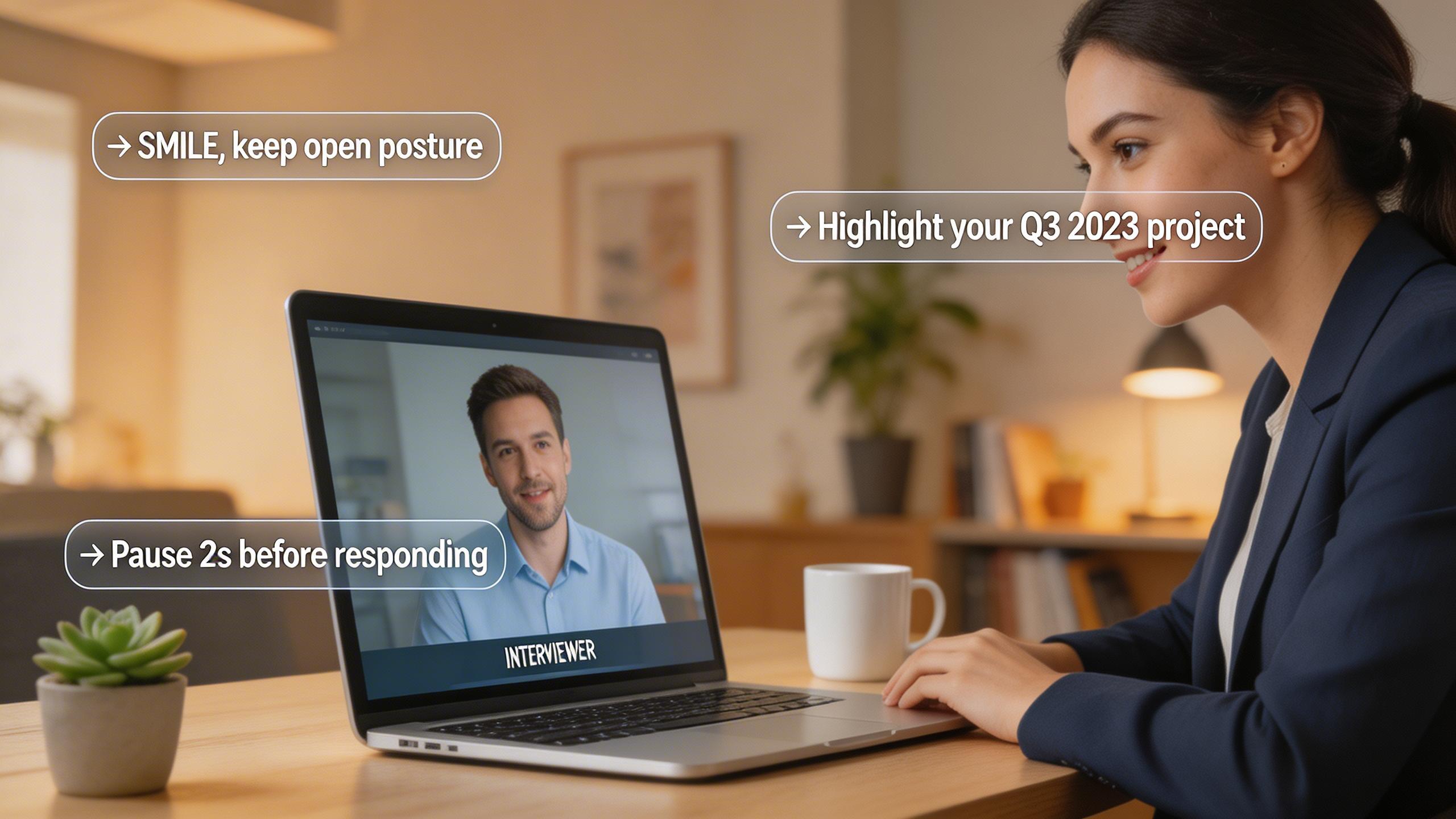
Real-Time AI Interview Helper: What It Does and How to Use It
A practical guide to real-time AI interview helpers — how they work during live interviews, legitimate use cases, and what to avoid.
Can HireVue Detect Cheating? What Actually Gets Flagged in 2026
HireVue cheating detection explained: tab switching, shared scripts, AI-generated answers, and looking away — what the system actually flags and what it misses.
The Honest Switcher's Guide to Finding a Final Round AI Alternative
Comparing the best Final Round AI alternatives for 2026: honest breakdown of pricing, real-time performance, detection risks, and when each tool actually makes sense.