Respondus LockDown Browser for Job Assessments: What It Locks Down and Records
Facing Respondus LockDown Browser interview or assessment requirements? Here's exactly what it blocks, what Respondus Monitor records, and how to prepare.
TL;DR: A Respondus LockDown Browser interview or assessment locks your screen full-time — no tabs, no second monitor, no copy/paste, no other apps. Respondus Monitor, a separate paid add-on, adds webcam recording and flags handheld devices for human review. Nothing here auto-fails you; flags just get reviewed later. Prep by closing everything else first.
You get an email two days before a certification exam or a pre-employment skills test: "This assessment requires Respondus LockDown Browser. Please download it before your scheduled time." No further explanation. You search for what it actually does, and every result is written for a college student taking a midterm — not for someone whose job offer is riding on this test.
That gap is the problem. LockDown Browser and its optional companion, Respondus Monitor, were built for academic testing centers, but Respondus also licenses the software as an SDK and white-labeled OEM product to testing centers, certification boards, and licensing platforms — the kind of third-party exam you take for a job, not in a classroom. If you landed here from a hiring pipeline instead of a course syllabus, here's what's actually happening on your screen.
What Respondus LockDown Browser Actually Locks Down
LockDown Browser is a custom, stripped-down browser — not spyware installed system-wide, and not webcam software by itself. According to Respondus's own product specification, once your assessment starts:
- The window runs full-screen and can't be minimized until you submit
- The browser toolbar is stripped to Back, Forward, Refresh, and Stop — no address bar, no new tabs
- You can't switch to other applications: messaging apps, screen-sharing tools, virtual machines, and remote desktop software are all blocked
- Right-click, function keys, and most keyboard shortcuts are disabled
- Printing, screen capture, and copy/paste in or out of the assessment window are all blocked
- The test cannot be exited or force-closed until it's submitted
This is a genuinely different category from something like HackerRank's basic tab-switching log, which records that you left the window but doesn't stop you. LockDown Browser doesn't log the attempt — it prevents it. If you're used to keeping reference tabs open during a technical screen, this will feel unusually restrictive by comparison.
Respondus Monitor vs. LockDown Browser: Does It Record You?
This is the single most common point of confusion, and it's worth being precise about because the two products are licensed and priced separately.
LockDown Browser alone does not use your webcam. It only controls what your browser and OS can do during the test.
Respondus Monitor is the add-on that adds webcam and audio recording. When an assessment requires Monitor, here's what actually happens, per Respondus's own support documentation on how the screen recording option works:
- Your webcam records video and audio for the duration of the test
- Facial-detection software checks that a face is present and matches your ID/reference photo
- If a "screen recording" option is enabled, your screen activity is captured alongside the webcam feed
- The system watches for handheld devices — phones, tablets, calculators — entering the camera frame
None of this produces an automatic pass/fail. Every flagged session gets a Review Priority score of Low, Medium, or High, and a human — an instructor, a testing coordinator, or in a hiring context, whoever administers the exam on the employer's behalf — reviews flagged sessions afterward. A flag is a prompt for review, not a verdict. Respondus's own explainer on the handheld device flag is explicit that the detection has known limits and false positives (a coffee mug catching a reflection, a phone visible but untouched on a desk).
Once you're through the assessment gate, the AI interview rounds that follow are a different animal entirely — AceRound AI gives you real-time answer suggestions during live video interviews, not locked-down tests. Try a free session to see how it works before your next round.
Why You're Seeing This for a Job, Not a Class
If you're wondering why an academic testing tool showed up in a hiring process, the honest answer is licensing, not a HireVue-style enterprise sale. Respondus explicitly markets an SDK and OEM version of its lockdown technology to "testing centers, publishers, LMS vendors, and organizations offering certification testing" — over 80 organizations embed it as a white-labeled feature inside their own platforms.
In practice, candidates encounter it in a few recognizable pre-employment assessment proctoring scenarios:
- Professional licensing exams that gate a specific role — insurance, real estate, some healthcare and allied-health credentials
- Vendor or IT certification exams (cloud, networking, security certs) that employers list as hard requirements
- Third-party skills-testing platforms that license Respondus's lockdown tech rather than building their own
This is a meaningfully different situation from a company-run technical screen on HackerRank or an AI-conducted video interview. There's usually no recruiter sitting on the other end who can waive a rule — the testing platform's policies are fixed, and the employer just requires a passing certificate.
The Respondus LockDown Browser Second Monitor Problem
This trips up more candidates than almost anything else, and it's worth flagging on its own. Most proctoring tools warn you about a second monitor. LockDown Browser disables secondary displays outright the moment the assessment launches — it doesn't ask permission first.
If you normally work across two screens, or you're testing on a laptop connected to an external monitor, unplug or disable the second display before you launch the browser, not after. Trying to reconnect a monitor mid-test is one of the more common ways candidates get an unwanted interruption during a high-stakes exam window.
Respondus LockDown Browser Cheating Detection: What Actually Gets Flagged
Putting the pieces together, here's what triggers review in a Monitor-enabled session:
- Face not detected for an extended period, or a face that doesn't match the reference photo
- A handheld device — most commonly a phone — visible in the camera frame
- Excessive movement or repeated leaving-and-returning to the camera view
- Attempts to exit the locked browser, switch applications, or access a second display, which the software blocks and logs
- Unusual audio patterns, if audio monitoring is enabled, such as another voice in the room
None of these single-handedly ends your assessment. They raise your Review Priority score, and a human makes the actual call. That distinction matters if you're anxious about an accidental flag — a phone visible on your desk isn't the same as being caught using it, and reviewers can typically tell the difference on playback.
How to Prepare for a Respondus LockDown Browser Interview or Assessment
- Close everything before you launch the browser — other applications, especially messaging and screen-sharing tools, will block the launch or get force-closed anyway
- Disconnect any second monitor ahead of time, not as a reaction to a warning
- Test your webcam and microphone in advance if Monitor is required — a failed camera check at the start of your window wastes time you can't get back
- Clear your desk of phones and other handheld devices, or move them well outside the camera frame
- Use a wired connection if possible — a mid-test disconnect on a locked browser is harder to recover from gracefully than on a normal web app
- Don't try workarounds like virtual machines or a second device to look something up — VM and remote-desktop access is one of the specific things LockDown Browser is built to detect and block
One honest limitation worth naming: because LockDown Browser blocks other applications, overlay tools, and screen-sharing by design, there's no way for any AI assistant — including ours — to run alongside a locked assessment itself. Where AI interview prep actually helps is everywhere else in the pipeline: practicing the behavioral and technical rounds that come before or after the locked exam, where the format is a normal video call rather than a sandboxed browser.
For a broader look at how different platforms monitor candidates, see Can Online Interviews Detect Cheating and Does HireVue Detect Cheating.
FAQ
Can LockDown Browser detect a second monitor? Yes — it disables secondary displays as soon as the assessment starts, rather than just warning you about one. Disconnect any extra monitor before launching the browser, not after.
What happens if I try to use another browser during a Respondus test? LockDown Browser blocks access to other browsers and applications while the assessment is active. You can't switch to Chrome, Safari, or another browser window until you submit — the attempt is prevented, not just logged.
How does the screen recording option in Respondus Monitor work? When enabled, Monitor records your webcam, audio, and (if configured) your screen activity for the full assessment. Footage is reviewed only if the system's facial-detection or handheld-device checks raise a flag, or at the reviewer's discretion.
I need to take an exam in a Respondus LockDown Browser. What is this and how do I do it? It's a locked-down browser that restricts your computer to the assessment window only, with no tabs, external apps, or copy/paste. Download and install it from the link your testing platform provided ahead of your scheduled window, and launch it only after closing everything else.
Does Respondus Monitor flag me if my phone is visible? It can — the handheld-device detection is built to notice phones, tablets, and calculators entering the camera frame. A flag triggers human review, not an automatic penalty, and reviewers can usually distinguish a visible-but-unused phone from active use.
Can I get a false "cheating" flag from Respondus Monitor? Yes, and Respondus itself acknowledges this in its own documentation — reflections, background movement, or an object mistaken for a device can trigger a review flag. A flag is a prompt for a human to look, not a finding of misconduct.
Author · Alex Chen. Career consultant and former tech recruiter. Spent 5 years on the hiring side before switching to help candidates instead. Writes about real interview dynamics, not textbook advice.
Related Articles
When You Disagree With an AI Recommendation
A new 2026 interview question tests whether you defer to AI or actually check it first. Here's how to structure a real answer, with scenarios.
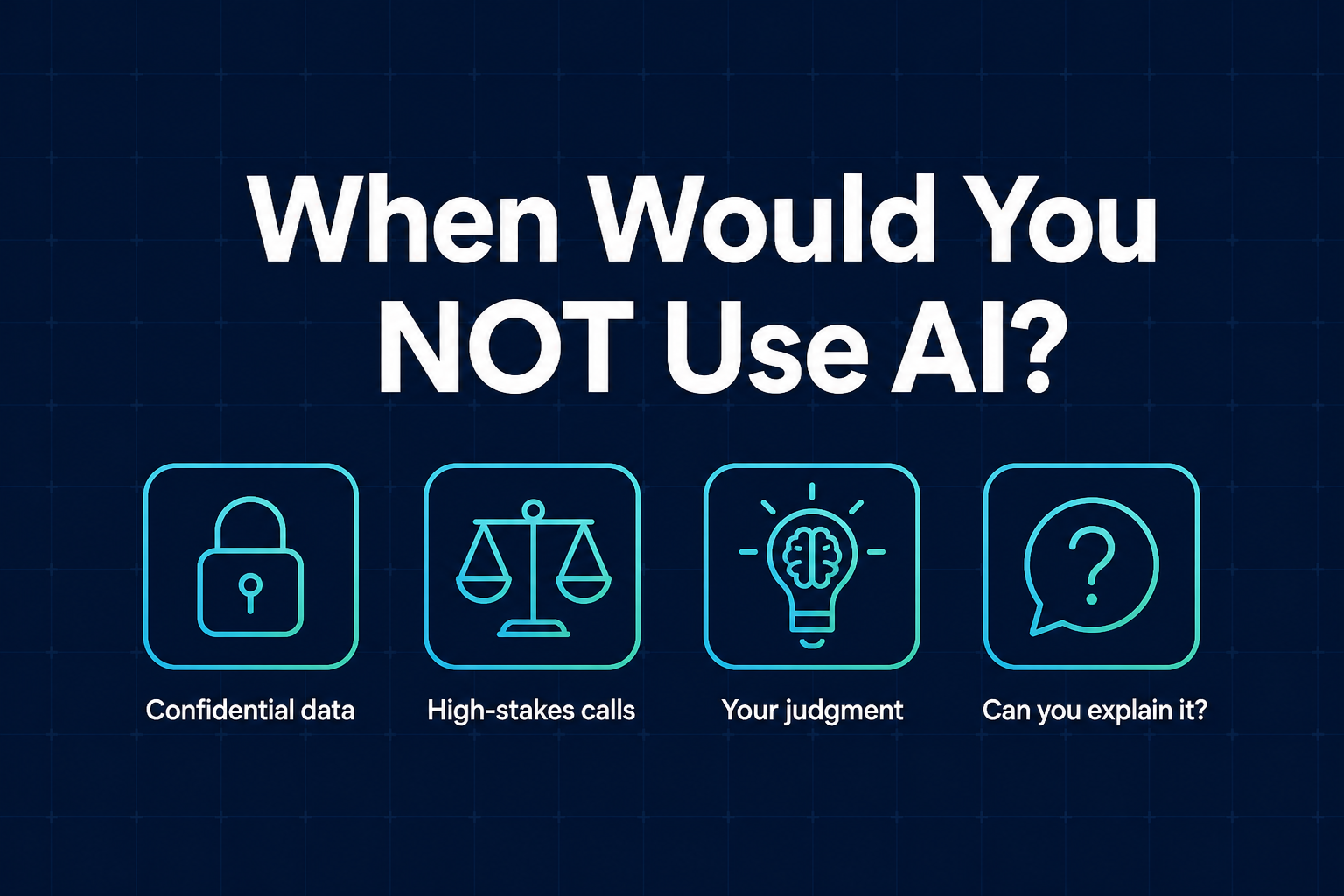
When Would You Not Use AI? Interview Question, Answered
A 2026 interview trust test asks where you draw the line on AI. Here's a 4-part framework with real example answers, not a vague list of principles.
CoPilot Interview Alternative: The Real Pricing Ladder
Looking for a CoPilot Interview alternative? Here's the actual 5-tier pricing ladder, what model access is gated behind the top plan, and what to compare instead.